Short answer: click into any text field in Safari, press ⌃+⌥+R, speak as long as you need, press again. AICHE inserts cleaned-up text at your cursor in 2-3 seconds. No Safari extension, just the same Mac-wide hotkey that works everywhere else.
Safari is the default Mac browser for good reason: lower energy use than Chrome or Firefox, deep iCloud and Handoff integration, and Tab Groups that actually work. The one thing the Safari extension ecosystem is light on is voice input. AICHE skips that lane entirely. It's a macOS desktop app, not a Safari extension, so the hotkey works in Safari the same way it works in Notes, Mail, or anywhere else on your Mac.
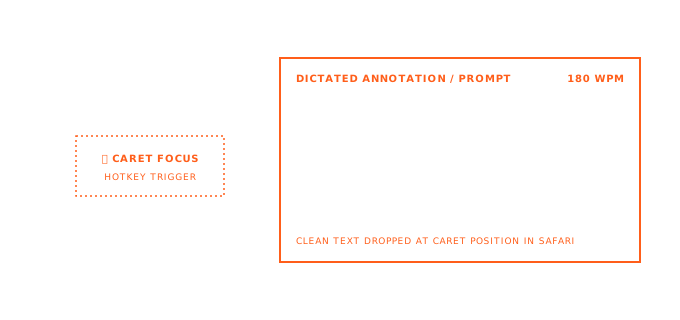
How It Works
- Open Safari. Navigate to any site or web app: Gmail, a CMS, Notion, Salesforce, an AI chat, anything with a text field.
- Click into the field.
- Press ⌃+⌥+R.
- Speak. No length cap.
- Press the hotkey again. AICHE transcribes, applies AI cleanup, inserts.
That's it. Same hotkey across every Tab Group, every tab, every site.
Where Voice Pays Off in Safari
Research Inside a Tab Group
Tab Groups organize related tabs by topic: a Research group, a Client Work group, a Personal group. Most people use them for organization but still take notes in a separate app. Open a Google Doc or Notion page in the same Tab Group as your sources. While reading, switch to the notes tab, press the hotkey, dictate the takeaway: "Smith 2024 paper found response latency rose 40% under load, which contradicts the vendor's benchmark. Need to test this ourselves with production traffic patterns." Ten seconds spoken, captured properly, never left Safari.
Web App Long-Form Fields
Salesforce, HubSpot, Zendesk, Jira, Confluence. Browser-rendered textareas where you need a paragraph, not a sentence. Press, speak, press, send. Voice for a Jira description or Confluence page is roughly 3x faster than typing it.
iCloud-Synced Continuity
Safari syncs tabs across Mac, iPad, and iPhone. The dictation work you do on your Mac is already saved in the web app, so when you pick up on iPad, the text is there. No AICHE-side state to sync; the web app handles its own.
Reading List + Voice Log
Use Reading List for queued articles, then create a Tab Group for the deep-review session. As you work through each article, dictate the takeaway into a web doc in the same Tab Group. You end up with a curated research log that cost almost no typing effort.
Web App Replies and Forms
Customer-support tools, job-board applications, contact forms, internal admin tools. Anywhere the form expects more than a sentence, dictation gets a coherent first draft in a fraction of the typing time.
What You Get
- Unlimited voice notes with AI cleanup - filler words removed, punctuation and paragraph breaks added.
- System-wide dictation - same hotkey works in Safari, Notes, Mail, any Mac app.
- Custom vocabulary - drop in client names, brand names, product codenames. Spelled correctly.
- Multilingual voice input - speak in any supported language, transcribe in that language or auto-translate to English.
- End-to-end encrypted sync - cross-device sync with notes encrypted on your device first.
- Zero-retention audio - audio purged after processing.
Plans start at $3.99/mo (annual) with a 7-day free trial, no credit card. See pricing.
Common Questions
Q: Will this slow Safari down or eat battery?
A: No. AICHE is a separate Mac app, not a Safari extension. Safari's memory and energy footprint stay the same.
Q: I have macOS dictation enabled (Fn Fn). Does it conflict?
A: No. Different activation method. If you find yourself triggering macOS dictation by accident, you can turn it off in System Settings → Keyboard.
Q: Does it work in Safari Web Extensions like 1Password or Grammarly?
A: Yes. Their extensions and AICHE don't interact. Grammarly will still flag issues in dictated text after it's inserted.
Q: Can I dictate the URL bar?
A: Yes, but for short URLs typing is faster. Voice shines for paragraphs, not search queries.
Q: What about Safari on iPhone or iPad?
A: Use the AICHE iPhone or iPad app to capture, then paste into mobile Safari. Notes sync via E2E encrypted cloud, so anything captured on the phone is on your Mac the moment you open it.
Result: Safari's battery and integration story stays intact. Voice input gets layered on top via the system-wide hotkey. Tab-Group research, web-app forms, and long replies all stop being typing-bound.
Try it now: open Safari, pick any text field in any web app you have open, press ⌃+⌥+R, and speak a real message. Notice how voice in Safari feels exactly like voice in Notes, because it is.