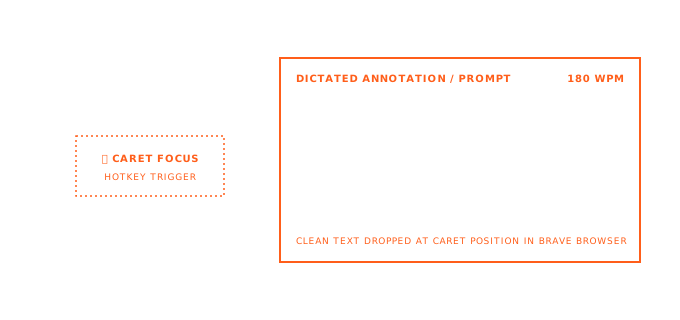
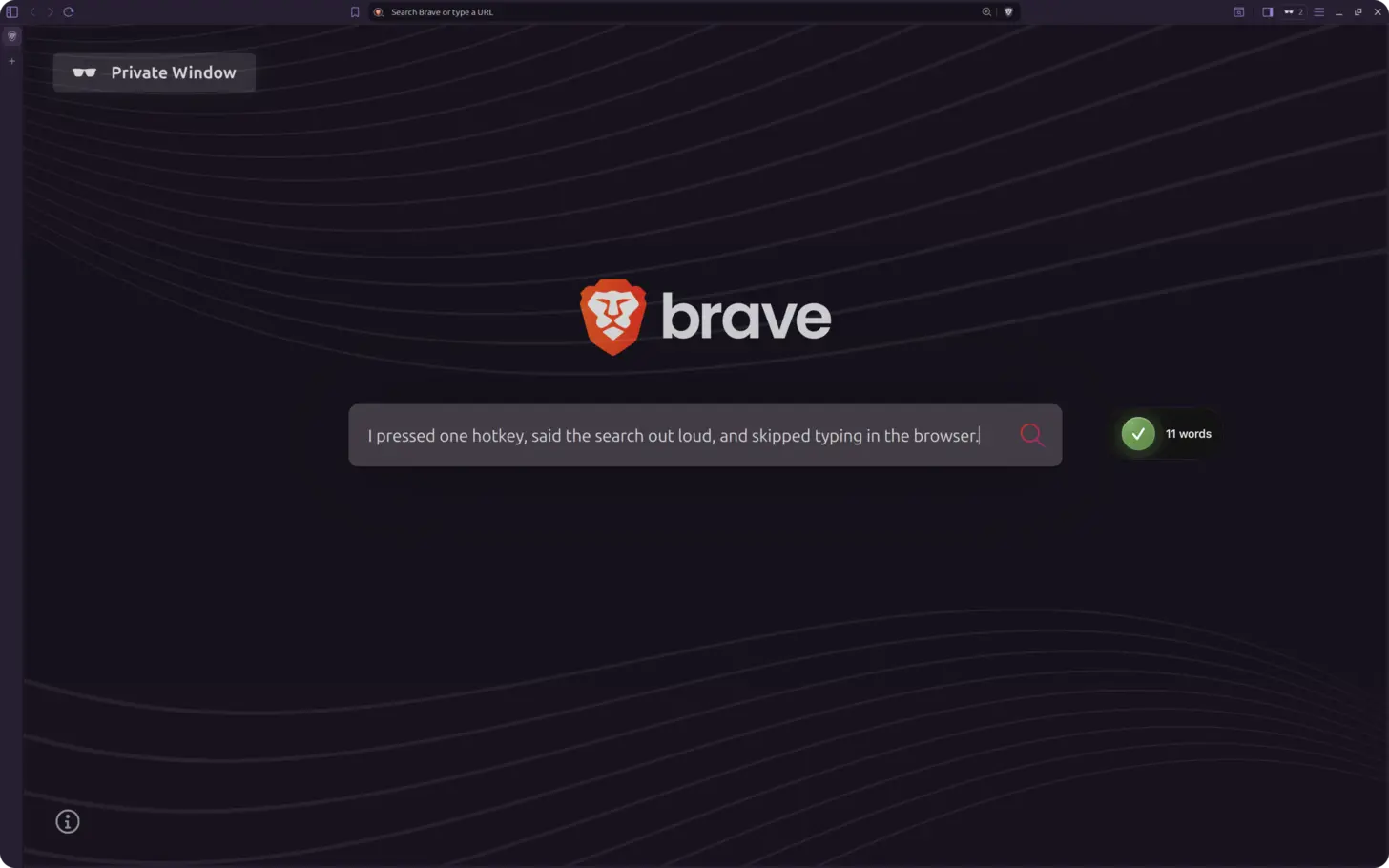
The short answer: click into any text field in Brave, press ⌃+⌥+R (Mac) or Ctrl+Alt+R (Windows/Linux), speak naturally, and AICHE inserts formatted text at your cursor. Works with Brave Leo, Brave Search, and every web app. AICHE's zero-retention audio handling matches the privacy standards you chose Brave for.
You switched to Brave because you got tired of being the product. Built-in ad blocking, tracker blocking, fingerprint protection. Your browser works for you, not for advertisers. Adding a voice input tool should not undermine that. AICHE streams audio for cloud transcription, then discards it after processing. No voice fingerprints, no audio archives, no data sold to third parties. It is the voice input approach that Brave users can actually trust.
- Open Brave Browser and navigate to any page with a text field. This could be Brave Leo in the sidebar, a web app like Gmail or Notion, an AI assistant like ChatGPT or Claude, or Brave Search itself.
- Click into the text field where you want text to appear.
- Press ⌃+⌥+R on Mac or Ctrl+Alt+R on Windows/Linux to start recording.
- Speak your message naturally. For a Brave Leo prompt, give detailed context about what you need. For a web form, speak the full answer. For Brave Search, describe what you are looking for in natural language.
- Press the hotkey again to stop. AICHE transcribes, applies Message Ready formatting, and inserts the text.
- Review, edit if needed, and submit.
- Move to the next tab and repeat. AICHE works the same in every Brave tab without configuration.
Brave Leo and detailed AI prompts
Brave Leo is the AI assistant built directly into Brave's sidebar. It can answer questions, summarize pages, and generate content. Like any AI assistant, Leo performs better when you give it detailed, specific prompts rather than short vague ones.
Typing a detailed Leo prompt takes time, especially when you want to include context from the page you are viewing. With AICHE, click into Leo's input field in the sidebar, press the hotkey, and speak your full request. "Summarize this article but focus specifically on the methodology section, highlight any statistical claims that are not backed by cited sources, and flag any conclusions that do not follow from the data presented." That takes about 10 seconds to speak. Typing it would take a minute or more, and most people would give up and write something shorter instead.
The result is that you actually use Leo to its potential instead of asking lazy two-word questions because typing is tedious.
Brave Search with natural language queries
Brave Search is a privacy-respecting search engine. Most people type short keyword queries because that is what years of Google trained them to do. But search engines, including Brave Search, handle natural language queries well, especially for nuanced or specific questions.
AICHE lets you speak full-sentence search queries without the friction of typing them. Click into the Brave Search bar, press the hotkey, and say "what are the current best practices for PostgreSQL connection pooling with PgBouncer in a Kubernetes environment with high-concurrency workloads." That is a much better search query than "pgbouncer kubernetes pooling" and will return more relevant results. You spoke it in 6 seconds instead of spending 15 seconds figuring out which keywords to type.
Privacy-aligned web browsing with voice
Brave blocks trackers, ads, and fingerprinting by default. AICHE complements this by not introducing new tracking vectors. It is a desktop application, not a browser extension. It does not inject scripts into web pages, does not read your browsing history, and does not phone home with usage data. The relevant network request is cloud transcription: AICHE streams audio for processing, then discards it after processing.
For Brave users who participate in web3 communities, crypto forums, or privacy-focused platforms, AICHE is useful for composing longer posts and responses. Community discussions on governance proposals, technical RFCs, or project updates often require detailed written responses. Dictating these is faster than typing and produces more thorough responses because the effort cost of adding another sentence is nearly zero when speaking.
Heads-up: Brave's built-in Shields (ad and tracker blocking) do not interfere with AICHE because AICHE is not a web-based tool. It runs as a desktop application and inserts text at the OS level. Your Shields settings, fingerprint protection, and cookie blocking all remain exactly as configured.
The pro-tip: if you use Brave's private windows with Tor, AICHE still works in text fields there. The voice input happens locally through your desktop app, and only the transcribed text gets entered into the browser. Your Tor routing is not affected.
Result: your privacy-first browser gets voice input that respects the same principles. Faster text entry in every web app, better AI prompts for Brave Leo, more detailed search queries on Brave Search, and no new tracking introduced.
Do this now: open Brave, click into Brave Leo's sidebar input or any web app text field, press the hotkey, and speak something you would normally type. Your browser stays private, AICHE discards audio after processing, and your text appears quickly.