Short answer: click into any text field in Chrome, speak, and get clean, punctuated text inserted at your cursor. Use the dedicated AICHE Chrome Extension (Alt+V) or our universal desktop app (Ctrl+Alt+R / ⌃+⌥+R).
Two Ways to Use AICHE in Chrome
Whether you live in Google Chrome all day or juggle multiple desktop apps alongside your browser, AICHE gives you two purpose-built ways to dictate.
Option 1: Chrome Extension (Browser-Native Companion)
Install the official AICHE Voice-to-Text Chrome Extension directly from the Chrome Web Store. It works out of the box in Chrome, Brave, Microsoft Edge, Opera, Vivaldi, and Arc.
Key Features:
- Keyboard Shortcut (
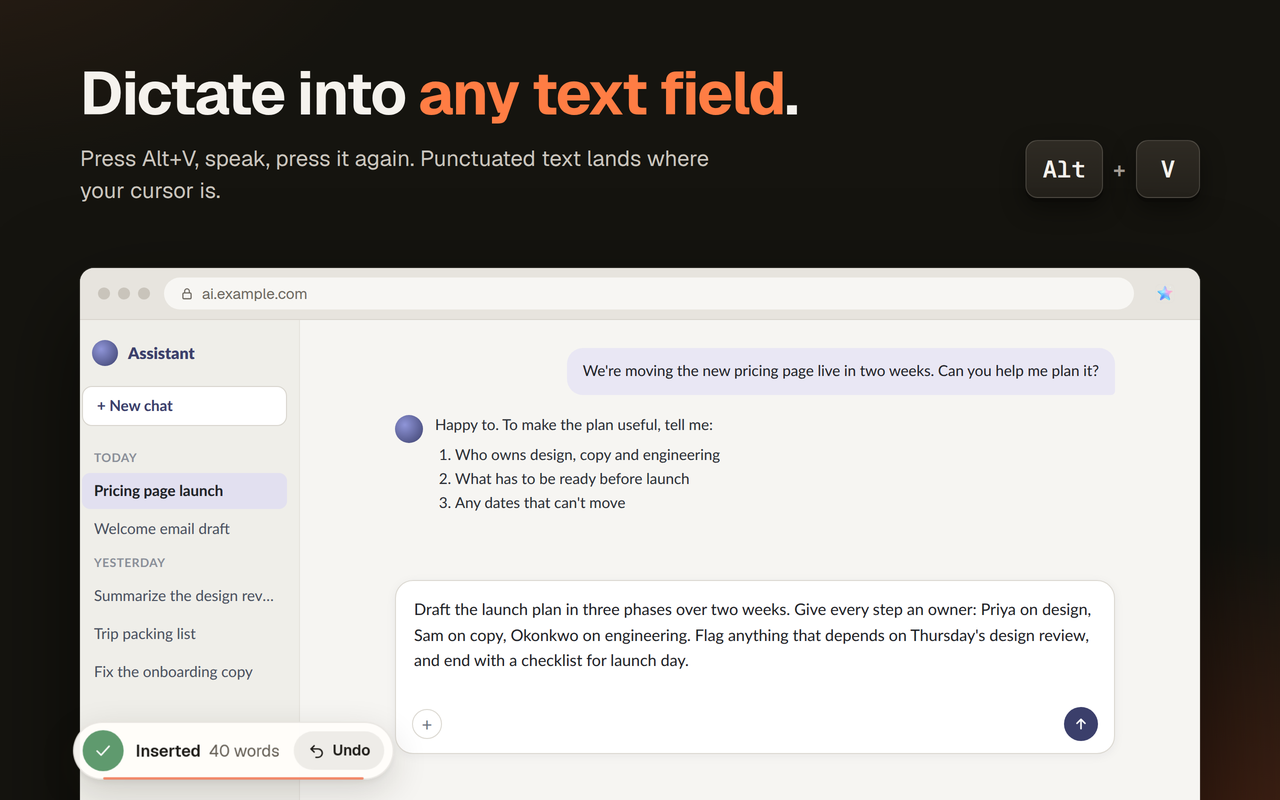
Alt+V): PressAlt+Vin any tab to start dictating; press again to finish and insert clean text. - On-Page Floating Pill Widget: An unobtrusive pill appears on the page showing recording duration. Once inserted, it confirms word count with an instant Undo button (
Inserted 40 words | Undo). - In-Field Mic Button: Quick microphone triggers right at your input fields.
- Docked Side Panel Notes (
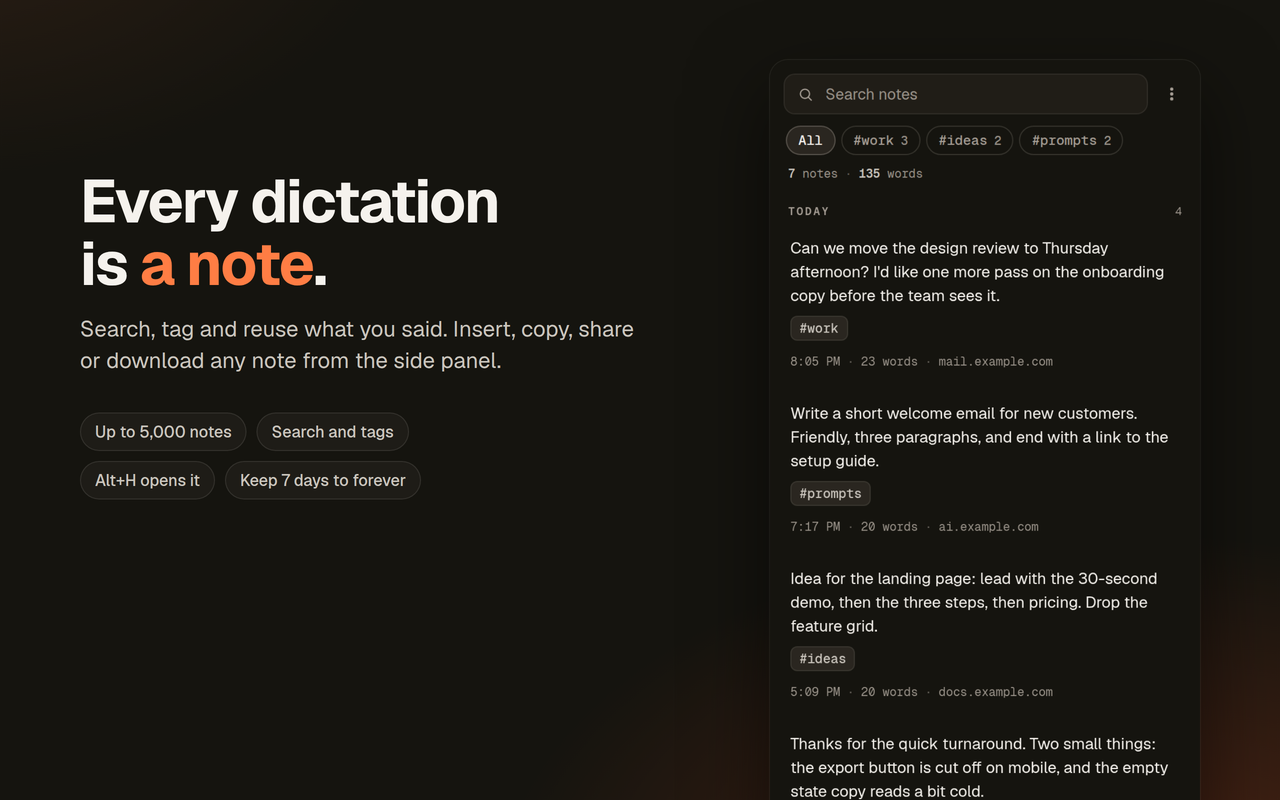
Alt+H): Access your full searchable transcription history (up to 5,000+ notes) directly inside Chrome's native side panel. - Tag Organization: Filter notes instantly with tags like
#work,#ideas,#prompts, and#drafts. - AI Enhancement: Configure custom prompt instructions to polish tone, strip filler words, or format text as bullet points.
- Custom Vocabulary: Add technical terms, team names, and abbreviations to your dictionary for 100% accuracy.
- Zero Install Overhead: Perfect for Chromebooks, corporate work laptops with desktop install restrictions, and cloud-first workflows.
Option 2: Desktop App (System-Wide OS Hotkey)
AICHE also runs as a native desktop application for macOS, Windows, and Linux. It captures audio at the OS level and inserts text into whatever window and field has focus — Chrome doesn't even need an extension enabled.
- Open any tab. Click into any text field (Gmail compose window, Jira comment, ChatGPT prompt, Webflow rich text, DevTools Console).
- Press
⌃+⌥+Ron Mac orCtrl+Alt+Ron Windows/Linux. - Speak. Pace around. Pause to think. The hotkey is a toggle, so the recording stays active until you press it again.
- Press the hotkey again. AICHE transcribes, removes filler words, adds punctuation, and inserts text at the cursor.
- Submit. Send the email, post the ticket comment, or execute the prompt.
The desktop hotkey works identically in tab 1 and tab 27, in regular windows, across multiple Chrome profiles, in Incognito windows, and inside Chrome DevTools.
Math: speaking averages 150 WPM vs. typing at 40 WPM. An 80-word Jira comment or Slack reply that takes 2 minutes to type takes 30 seconds to speak.
Web Apps Are Text Fields. AICHE Handles Text Fields.
A normal workday cycles through 8–12 web apps in Chrome. Each has its own input quirks:
- Gmail: Uses a rich text contenteditable. AICHE inserts plain or formatted text respecting your cursor and existing styling.
- Google Docs: Canvas-based editor. AICHE inserts through the active input layer without requiring Google's built-in voice tool.
- ChatGPT, Claude.ai, Gemini, Perplexity: Textareas and prompt inputs. Long, context-rich prompts that take minutes to type can be dictated effortlessly.
- Jira, Linear, GitHub Issues: Structured issue descriptions and comments. Dictate repro steps, error codes, and expected outcomes without breaking your flow.
- Notion, Webflow, Coda, CMS platforms: Rich text block editors. AICHE inserts clean paragraphs without unwanted formatting artifacts.
- Internal admin panels and dashboards: Custom in-house web tools where third-party integrations don't exist. AICHE works in them automatically.
Chrome Profiles, Incognito, and Multiple Accounts
If you manage separate Chrome profiles for work, personal browsing, or client projects:
- With the Desktop App: Runs once at the OS level. The global hotkey works seamlessly across all profiles, Incognito windows, and Guest sessions without per-profile configuration.
- With the Chrome Extension: Sign in once, or pin the extension in each profile to maintain distinct notes histories and project tags.
DevTools Console & Code-Heavy Workflows
Click into the Console or Sources tab inside Chrome DevTools, activate AICHE, and dictate queries, fetch commands, or logpoint conditions.
With AICHE's Software Development profile (Pro), speech recognition is specialized for programming terminology: camelCase, snake_case, kebab-case flags, library names, and bracket syntax are captured accurately without accidental auto-capitalization or smart-quote interference.
Installed PWAs
When you install web applications from Chrome as Progressive Web Apps (Linear, Notion, ClickUp, Figma, Spotify, WhatsApp Web), each runs in an isolated standalone window. Both AICHE's desktop hotkey and extension background handlers work in installed PWA windows just as they do in regular browser tabs.
What About Chrome's Built-In Voice Typing?
Chrome offers built-in voice typing in Google Docs and Slides. However:
- It is restricted to Docs and Slides only — it does not work in Gmail, ChatGPT, Jira, or general web pages.
- Account and document language must both be English to use voice commands.
- Sessions frequently disconnect silently after 10–15 minutes.
- No custom vocabulary dictionary, no filler removal, and no AI prompt enhancement.
AICHE works everywhere in Chrome, across 99 languages, with AI cleanup and custom dictionaries.
What You Get
- Dedicated Chrome Extension:
Alt+Vrecording, in-field mic button, floating pill widget with instant Undo, and side panel notes history (Alt+H). - Global Desktop Hotkey:
Ctrl+Alt+R/⌃+⌥+Racross every browser tab, DevTools console, PWA, and desktop application. - Smart Insert: Cleaned text lands directly at your cursor in any editor.
- Software Development Profile (Pro): Tuned for code snippets, API identifiers, flags, and technical prompts.
- Custom Vocabulary: Add internal project names, jargon, teammate handles, and acronyms.
- Multilingual Input & Auto-Translation: Speak in 99 languages with automatic punctuation and optional English translation.
- Zero-Retention Privacy: Audio is purged immediately after processing.
Plans start at $3.99/mo (annual) with a 7-day free trial, no credit card required. See pricing.
Common Questions
Q: Do I need to install a Chrome extension?
A: You can choose whichever workflow suits you best:
- Chrome Extension: Install from the Chrome Web Store for dedicated browser features like the floating undo pill and side panel notes (
Alt+H). - Desktop App: Install AICHE on macOS, Windows, or Linux to use a global OS hotkey across all applications, DevTools, and browser tabs without an extension.
- Both: Many users use the extension for quick browser notes and the desktop app for cross-application dictation.
Q: Does it work in Incognito windows?
A: Yes. The desktop app works in Incognito automatically because it operates at the OS level. If using the Chrome Extension, simply check "Allow in Incognito" in chrome://extensions.
Q: Will it work in Brave, Edge, Arc, or Opera?
A: Yes. Both the AICHE Chrome Extension and the desktop app work flawlessly across Chromium browsers including Brave, Microsoft Edge, Opera, Arc, and Vivaldi.
Q: Does it work in Google Docs without Chrome's Voice Typing turned on?
A: Yes. AICHE inserts text into Google Docs without needing Chrome's Voice Typing enabled. We recommend keeping Google Docs Voice Typing disabled so the two tools do not conflict.
Q: Will it mess up code I dictate into the DevTools Console?
A: Enable the Software Development profile (Pro). It handles syntax, method names, and identifiers cleanly. Disabling smart quotes in settings ensures strings and template literals remain shell-safe.
Result: Chrome stops being the place where you type all day. Speak naturally, keep your hands on your train of thought, and let AICHE handle the text.