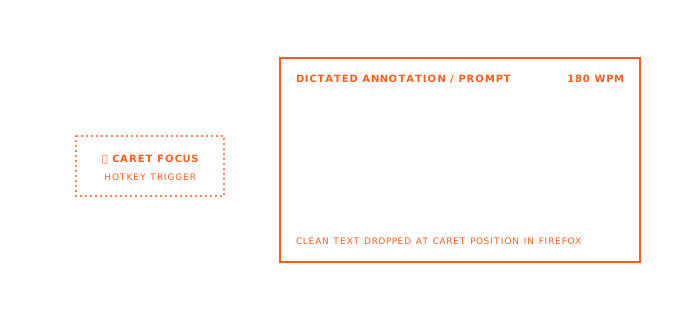
The short answer: click into any text field in Firefox, press ⌃+⌥+R (Mac) or Ctrl+Alt+R (Windows/Linux), speak naturally, and AICHE inserts formatted text at your cursor. Works across Multi-Account Containers, separate profiles, DevTools Console, and every web app. No extension needed.
Why Firefox Users Hit a Unique Problem
Multi-Account Containers isolate cookies and sessions per context: Work, Personal, Banking, Client. You switch between them dozens of times a day. Browser-based voice extensions break here. They need per-container permissions, and some fail entirely when containers block cross-context storage. AICHE runs at the OS level. It does not touch container boundaries, Firefox profiles, or Enhanced Tracking Protection settings. One hotkey works in every container, every profile, every web app.
A Real Workflow Across Three Containers
You have a Work container with Jira open, a Client container with their CMS, and a Personal container with Gmail.
- Click into the Jira comment field in your Work container. Press ⌃+⌥+R (Mac) or Ctrl+Alt+R (Windows/Linux). Speak: "Steps to reproduce: open the dashboard, click the export button, select CSV format, wait for the file download. Expected behavior: the file downloads within 5 seconds. Actual behavior: the spinner runs indefinitely and the network tab shows a 504 on the export endpoint."
- Press the hotkey again to stop. AICHE transcribes and inserts the formatted bug report.
- Switch to your Client container CMS. Click into the page editor. Press the same hotkey. Dictate the content update.
- Switch to Gmail in your Personal container. Reply to a thread. Same hotkey, same result.
No extension reinstalls between containers. No permission prompts. No container awareness needed on your part.
Multi-Account Containers and Firefox Profiles
Firefox gives you two isolation layers. Multi-Account Containers separate cookies and sessions within one window. Firefox Profiles go further: separate bookmarks, history, extensions, and settings per profile.
AICHE sees neither layer. Three containers in one profile or three separate Firefox profiles (dev, personal, client) make no difference. The hotkey works in every text field across all of them. Browser extensions would need separate installs per profile. AICHE skips that.
DevTools: Console Input, Network Filters, and about:config Notes
Firefox DevTools are a daily workspace for web developers. The Console, Network tab, Style Editor, and Accessibility Inspector all have input fields where AICHE works.
Click into the Console input. Press the hotkey. Dictate a multi-line fetch call with nested headers and a JSON body. AICHE inserts the text. Adjust syntax, then run it. Faster than typing bracket-heavy JavaScript.
Network tab filter expressions work the same way. Speak: "method colon POST status-code colon 500 domain colon API dot example dot com." Faster than remembering the filter syntax.
For about:config tweaks, open your notes app. Press the hotkey. Speak: "Changed network.http.pipelining to true. Reason: testing parallel HTTP request performance on staging. Default was false. Revert if production latency increases." Ten seconds of speech. Two minutes of typing. Most about:config changes go undocumented because of that gap.
Picture-in-Picture and Firefox View
Firefox Picture-in-Picture pops a video into a floating window. The video stays visible while you work in another tab.
Open your notes in one tab. Start PiP on a tutorial or recorded meeting. Press the hotkey. Dictate: "At 14 minutes, the speaker covers container queries for responsive components. Key point: container queries replace most media query use cases for component-level layout." Timestamped notes without pausing the video or switching windows.
Firefox View shows recently closed tabs and synced tabs across your devices. When you spot a tab you closed yesterday that had useful content, reopen it, read the section you need, then switch to your notes and dictate a summary. Firefox View is the retrieval step. AICHE is the capture step.
Enhanced Tracking Protection and Sidebar
Firefox Enhanced Tracking Protection (ETP) runs in strict, standard, or custom modes. None interfere with AICHE. AICHE is not an extension, not a web request, not a tracker. ETP stays untouched.
Firefox Sidebar provides quick access to bookmarks, history, synced tabs, and extension panels. Find a page through the sidebar. Navigate to it. Click a text field. Press the hotkey. Sidebar handles navigation. AICHE handles input.
What You Get
- Cross-container dictation - one hotkey across Work, Personal, Banking, and Client containers
- Cross-profile support - works in every Firefox profile without per-profile extension installs
- DevTools input - dictate Console commands, Network tab filters, and style overrides
- PiP note-taking - dictate notes while a video floats in Picture-in-Picture
- Zero browser footprint - no extension, no permissions, no fingerprinting surface
- ETP compatibility - strict, standard, or custom tracking protection stays untouched
- about:config documentation - speak your preference changes and reasons into your notes
Plans start at $3.99/mo (annual) with a 7-day free trial, no credit card. See pricing.
FAQ
Does AICHE require a Firefox extension?
No. AICHE is a desktop application that works at the OS level. It inserts text into whatever text field has focus, regardless of which browser you use. Nothing is installed in Firefox.
Does Enhanced Tracking Protection block AICHE?
No. ETP blocks web trackers, third-party cookies, and fingerprinting scripts. AICHE is not a web request. It runs as a local desktop application and is invisible to Firefox's tracking protection.
Do I need to configure AICHE for each Multi-Account Container?
No. Containers isolate browser-level data like cookies and sessions. AICHE operates below the browser layer, so it works identically in every container without configuration.
Does AICHE work in Firefox's private browsing mode?
Yes. Private browsing affects what Firefox stores locally. AICHE only inserts text at the cursor. It does not interact with Firefox's storage, history, or session data.
Can I use AICHE in Firefox DevTools?
Yes. The Console input, Network tab filter bar, Style Editor, and other DevTools text fields accept AICHE input the same way any text field does.
Result: Firefox's container isolation, profile separation, and tracking protection stay intact while AICHE adds voice input to every text field across every context. You get faster text entry without compromising the privacy setup you built.
Try it now: open Firefox, click into a text field in any container, press the hotkey, and speak a message. Notice that nothing about your Firefox configuration changes. No extensions installed, no permissions granted.