The short answer: click into any text field in Microsoft Edge, press ⌃+⌥+R (Mac) or Ctrl+Alt+R (Windows/Linux), speak naturally, and AICHE inserts formatted text at your cursor. Works in the Copilot sidebar, Collections notes, enterprise web apps, PDF tools, and every website. No extension required.
Edge is the default browser on every Windows machine, and increasingly the browser that enterprise IT departments mandate. If your company uses Microsoft 365, Azure DevOps, SharePoint, or Dynamics, you are probably doing a lot of work inside Edge. AICHE gives you voice input in every Edge text field, which matters when you are filling out the same kinds of forms and writing the same kinds of messages across a dozen Microsoft web apps every day.
- Open Microsoft Edge and navigate to any page with a text field. This could be the Copilot sidebar, an enterprise web app like SharePoint or Azure DevOps, a web-based email, or any website.
- Click into the text field where you want your text to appear.
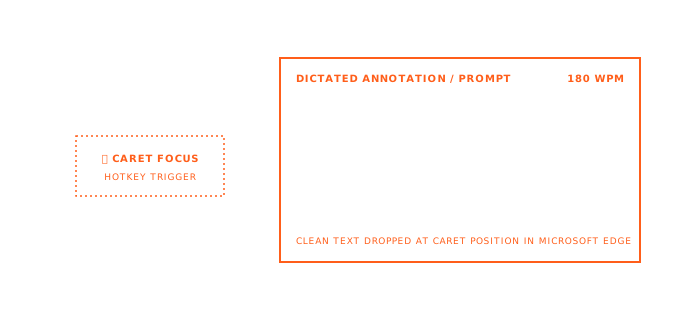
- Press ⌃+⌥+R on Mac or Ctrl+Alt+R on Windows/Linux to start recording.
- Speak your message naturally. For a Copilot prompt, describe what you need in detail. For an enterprise form, speak the full answer. For a Teams web chat, speak your reply.
- Press the hotkey again to stop. AICHE transcribes, applies Message Ready formatting for proper punctuation and structure, and inserts the text.
- Review and edit if needed, then submit.
- Move to the next tab, Vertical Tab, or sidebar panel and repeat. AICHE works the same everywhere Edge renders a text field.
Copilot sidebar prompts that actually get results
Edge's Copilot sidebar puts an AI assistant right next to whatever page you are viewing. Click the Copilot icon, and you can ask questions about the current page, generate content, or get help with tasks. The quality of Copilot's responses depends directly on how specific your prompts are.
Most people type short, vague questions into Copilot because the sidebar input field is small and typing feels cramped. "Summarize this page" gives you a generic summary. But dictating a specific request gives you a useful one. Press the hotkey in the Copilot input and say "summarize this quarterly earnings report, but focus on the revenue growth trends in the cloud services division, compare to last quarter's numbers mentioned in paragraph four, and flag any metrics that missed analyst expectations." That level of specificity turns Copilot from a novelty into a research tool.
AICHE works in the Copilot sidebar input the same way it works in any other Edge text field. Click, press hotkey, speak, stop. The sidebar's small input area is not a problem because you are speaking, not trying to type in a narrow box.
Collections for research with voice annotations
Edge Collections let you save web pages, images, and notes into organized groups. Think of them as bookmarks with context. The note-adding feature in Collections is where AICHE becomes particularly useful.
When you add a page to a Collection, you can attach a note explaining why you saved it. Most people leave this blank or write a few words because typing a note feels like extra work. With AICHE, click into the note field, press the hotkey, and speak your reason for saving the page. "This article has the best comparison of Azure Kubernetes Service pricing tiers that I have found. The table in section three shows the exact cost difference between the Standard and Premium tiers for our expected node count." That note takes 8 seconds to speak and will save you 5 minutes of re-reading when you come back to this Collection next week.
Over time, your Collections become a research library with spoken annotations instead of a pile of unnamed bookmarks.
Enterprise web apps and internal tools
Enterprise environments live in Edge. SharePoint document libraries, Azure DevOps work items, Power Platform forms, Dynamics 365 records, internal admin panels. All of these have text fields, and all of those text fields expect you to type.
AICHE works in every enterprise web app that runs in Edge because it operates at the OS level, not as a browser extension. This means your IT department does not need to approve an extension, and there are no group policy conflicts. The desktop app inserts text into whatever field has focus, whether that is a SharePoint page editor, an Azure DevOps work item description, or a Power Automate form input.
For enterprise users who fill out the same kinds of forms repeatedly, dictation is noticeably faster. Speak the incident description, the project status update, or the change request justification instead of typing it. The same information, delivered faster, with more detail because speaking is lower effort than typing.
Heads-up: Edge's built-in voice typing (available through Windows speech services) uses a different activation method than AICHE. They can coexist, but if you want to avoid confusion, pick one and disable the other. AICHE's transcription tends to be more accurate for technical terms, product names, and jargon.
The pro-tip: use Edge's Vertical Tabs to keep your sidebar clean and organized when you have many enterprise apps open. Click into any tab's text field, press the hotkey, and dictate. Vertical Tabs plus voice input means you can work through a queue of tickets or forms efficiently without losing track of which tab you are in.
Result: Edge becomes a faster tool for the enterprise web apps you already use daily. Copilot prompts get more specific, Collections get actual annotations, and the forms you fill out across SharePoint, Azure DevOps, and internal tools take less time.
Do this now: open Edge, click into the Copilot sidebar or any web app text field, press the hotkey, and speak a detailed request. See the difference between a typed shortcut prompt and a spoken full-context prompt.