Short answer: click into any text field in Vivaldi, press ⌃+⌥+R (Mac) or Ctrl+Alt+R (Windows/Linux), speak as long as you need, press again. AICHE inserts the cleaned-up text at your cursor in 2-3 seconds.
Vivaldi is the browser for people who customize everything: tab stacks, tiling, command chains, custom shortcuts, mouse gestures. It also bundles tools no other browser ships: a Notes panel, a full Mail client, a Calendar, an RSS reader, Web Panels in the sidebar. Powerful, all keyboard-driven. AICHE adds voice input on top, so the same hotkey works in every one of those panels and every regular web field.
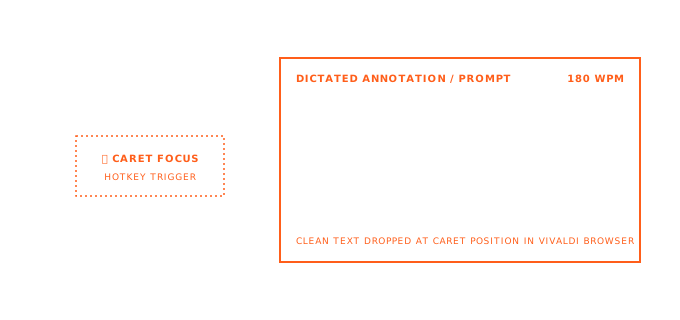
How It Works
- Open Vivaldi. Click into any text field: Notes panel (
F4), Mail compose, Calendar event description, a Web Panel, or any web page input. - Press ⌃+⌥+R (Mac) or Ctrl+Alt+R (Windows/Linux) to start.
- Speak. No length cap.
- Press the hotkey again. AICHE transcribes, applies AI cleanup, inserts the text.
That's it. Same hotkey, every panel.
Where Voice Pays Off in Vivaldi
Notes Panel as a Voice Capture Tool
Open the Notes panel in the sidebar, press the hotkey, talk: "Design meeting ran long. They want a sidebar nav layout. Main concern is mobile responsiveness. Lisa will send mockups Friday. I need to prep API endpoints for the new page structure before then." Ten seconds of speaking, five action items captured. Typed, that note becomes "design meeting - sidebar - Lisa mockups Friday" because typing it in full feels like work.
Mail Replies at Speaking Speed
Vivaldi Mail handles POP3, IMAP, multiple accounts, filters, threading. It's a real desktop mail client that lives inside your browser. Reply windows are a natural fit for dictation: a three-paragraph reply takes 90 seconds to speak versus 5 minutes to type, and AI cleanup handles punctuation and structure so the result reads like written text, not a transcript.
Calendar Events That Actually Have Context
Most people leave Calendar event descriptions blank because typing them is boring. Click into the description field, press the hotkey, talk: "weekly sync with the backend team. Migration timeline, PR backlog review, last week's monitoring alerts. Bring the latency report from Grafana." Done. Future-you opens the event and remembers what it was actually about.
Web Panels Without Fighting a 300-Pixel Field
Web Panels pin any site as a narrow sidebar (todo apps, messaging clients, reference docs). Typing into a 300-pixel-wide field is awkward. Voice doesn't care about field width. Press, speak, AICHE inserts.
Tab-Tiling Research
Tile a Vivaldi tab and the Notes panel side-by-side, dictate notes about what you're reading without flipping context. Voice handles the transcription; your eyes stay on the source.
What You Get
- Unlimited voice notes with AI cleanup - filler words removed, punctuation and paragraph breaks added.
- System-wide dictation - one hotkey, every text field, every Vivaldi panel.
- Custom vocabulary - drop in service names, contact names, project codenames, internal jargon.
- Multilingual voice input - speak in your language, get text in that language, or auto-translate to English.
- End-to-end encrypted sync - notes encrypted on your device before any cross-device sync.
- Zero-retention audio - audio purged after processing.
Plans start at $3.99/mo (annual) with a 7-day free trial, no credit card. See pricing.
Common Questions
Q: My Vivaldi shortcuts conflict with ⌃+⌥+R / Ctrl+Alt+R.
A: Change the AICHE hotkey in AICHE settings. Vivaldi users customize everything anyway, this is one more entry in your map.
Q: Does AICHE work in Vivaldi's Quick Commands palette?
A: Yes, but the Quick Commands input is for shortcuts, not freeform text, so dictation is awkward there. Use it in regular text fields.
Q: I run Vivaldi on Linux. Does the global hotkey work?
A: Yes. Ctrl+Alt+R on Linux works against any focused field, including Vivaldi's panels.
Q: Does AICHE see what I'm browsing?
A: No. AICHE only knows about the text you dictate. Browsing history, tabs, and page content are invisible to it.
Q: Can I dictate into Vivaldi's address bar to do a voice search?
A: Technically yes, but for short queries the existing address-bar typing is faster. AICHE shines for longer text.
Result: Vivaldi's built-in productivity tools, the ones that make it different from Chrome and Firefox, all get voice input. Notes capture more context, Mail replies go out faster, Calendar events have descriptions, Web Panels are usable.
Try it now: press F4 to open the Notes panel, click into a note, press your hotkey, and speak a real thought about what you're working on right now.