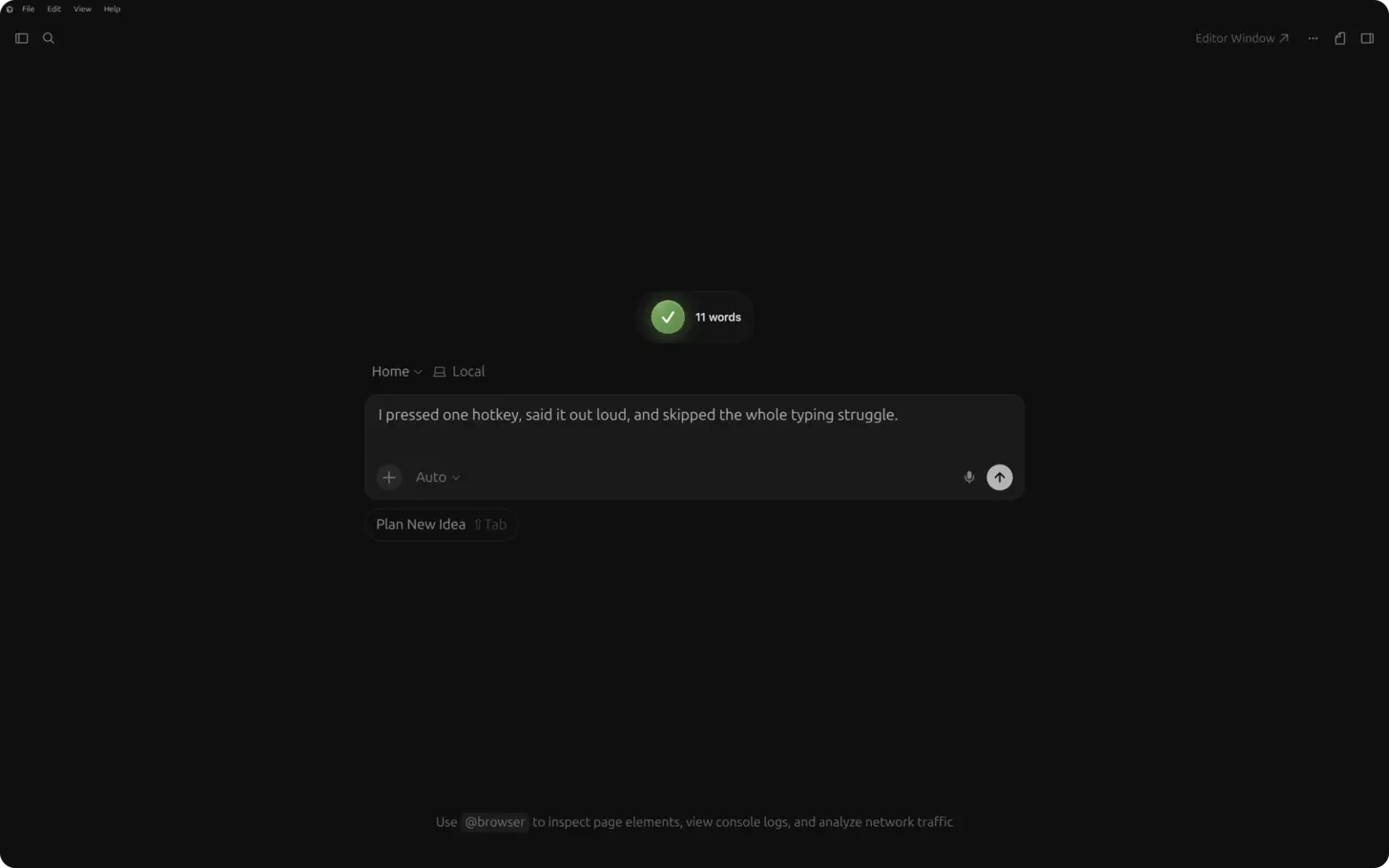
Short answer: in Cursor, click into the Agents Window prompt, Composer input, or chat panel (Cmd+L / Ctrl+L), press ⌃+⌥+R (Mac) or Ctrl+Alt+R (Windows/Linux), speak a full task with constraints and file context, press the hotkey again, then send. AICHE inserts text only. Cursor's agent runs tools, edits files, and proposes diffs. You approve or reject.
The Problem
Cursor is built around agents and Composer, not just autocomplete. The Agents Window is where you run parallel agent sessions (local, cloud, git worktrees, or remote SSH) from one sidebar. Each tab has its own model picker, context, and diff review. Agent mode reads the repo, edits files, runs terminal commands, and iterates. Plan mode maps the codebase before large refactors. Composer still handles coordinated multi-file edits from a dedicated input.
Every surface rewards the same thing: a long, specific natural-language brief. Short prompts ("add auth," "fix the bug") produce generic diffs and extra round-trips. The bottleneck is typing that brief while you still remember the call chain, the tables that must not break, and which tests must pass.
Cursor's built-in voice (where enabled) is for talking to the product. AICHE is for dictating the exact paragraph that lands in the prompt field you already use, with Custom Vocabulary for repo names and Software Development profile (Pro) for identifiers.
Where AICHE Helps Most In Cursor
| Surface | What you dictate |
|---|---|
| Agents Window | First message and follow-ups: scope, files to touch, test command, "propose only" vs "run tests after each change." Open via command palette: Agents Window. |
| Agent / Plan modes | Plan: goals, constraints, files in scope. Agent: execution brief after you approve a plan. |
| Composer | End-to-end feature specs: schema, API routes, UI states, edge cases across many files. |
| Chat (Cmd+L / Ctrl+L) | Questions with @ file/folder context, smaller refactors, explanations. |
| Inline edit (Cmd+K / Ctrl+K) | Selection-scoped changes: "convert to async/await, keep error shape, add retry with backoff cap 3." |
| Terminal-adjacent fields | Commit messages in the integrated terminal, PR descriptions in the diff view, any focused text field. |
AICHE does not press Enter, accept diffs, run YOLO auto-run loops, or invoke MCP tools. You send the prompt; Cursor's agent calls GitHub, Linear, or other MCP servers you configured.
How It Works
- Install AICHE and Cursor on macOS, Windows, or Linux.
- Open your repo. Open the Agents Window or focus Composer / chat input.
- Click into the prompt field (not the terminal unless you intend to type a command there).
- Press ⌃+⌥+R (Mac) or Ctrl+Alt+R (Windows/Linux) once to start (toggle, not push-to-talk).
- Speak 30 to 120 seconds: architecture, files, invariants, test command, autonomy level.
- Press the hotkey again. AICHE transcribes, optionally cleans filler, inserts at the cursor. Audio is streamed for cloud transcription, processed, and discarded after processing. No persistent audio copy.
- Send in Cursor. Review each file diff before accept.
Parallel agents: dictate the next tab's prompt while another agent runs in a worktree (/worktree in agent context). AICHE only fills the field in the tab you focused.
Cloud agents: same workflow for the initial handoff message; you still review screenshots or PRs Cursor generates when the cloud run finishes.
Agent-First Workflow Example
You need a migration from REST to an internal GraphQL layer in packages/api.
- Open Agents Window, new agent tab, choose Plan if the change is large.
- Click the prompt, hotkey on, speak: "Map all REST handlers under
packages/api/routesthatcheckoutcalls. Propose a GraphQL schema for cart and payment intents. Do not changepackages/webyet. List breaking risks and a test plan usingpnpm test --filter api. Stop after the plan." - Hotkey off, send. Review the plan in the tab.
- New message, hotkey on: "Implement phase 1 only: add schema and resolvers behind a feature flag
GRAPHQL_CHECKOUT. Keep REST routes until tests pass." - Send, review diffs, run tests yourself or let the agent run them per your rules.
Voice front-loads constraints so the agent does not guess your package manager or blast unrelated folders.
Composer, Chat, and Inline Edits
Composer is still the right surface when you want one coordinated multi-file pass without managing agent tabs. Dictate the same density you would give an agent: data model, API contract, UI states, failure modes.
Chat with @src/auth/middleware.ts or @folder attaches context. Speak the question or refactor request in full sentences; AICHE inserts plain text you can edit before send.
Cmd+K / Ctrl+K on a selection: select code, open inline edit, hotkey, speak the micro-spec, send. Best for localized changes, not whole-repo agents.
MCP and Rules (Your Words, Cursor's Execution)
If you use Cursor Rules (.cursor/rules or project rules) or MCP (GitHub, Linear, Sentry), name them in the spoken prompt: "Use the Linear MCP to fetch open payments bugs, then patch src/billing/webhook.ts only." AICHE inserts that sentence; Cursor's agent performs tool calls.
Mention team conventions in speech: "match existing error handling in auth/," "we use the repository pattern," "pnpm only."
What You Get
- Long agent prompts without five minutes of typing.
- Software Development profile (Pro) for
camelCase, flags, and library names. - Custom Vocabulary for services, codenames, and MCP labels.
- Voice Code for AI Coding Agents (Pro): optional pause-aware auto-send after dictation.
- Same hotkey in Cursor, browser, Slack, and terminal on desktop.
Plans start at $3.99/mo (annual) with a 7-day free trial, no credit card. See pricing.
FAQ
Does AICHE run Cursor's agent or accept diffs?
No. AICHE inserts text. You send, review, and accept in Cursor.
Agents Window vs classic editor layout?
Both exist. AICHE works in whichever prompt field has focus.
Does this replace Cursor Tab autocomplete?
No. Tab completes lines; AICHE fills natural-language prompts.
Linux and remote SSH?
Yes on desktop Linux with Ctrl+Alt+R. Remote SSH agent sessions still use the focused prompt field on your machine.
What happens to audio?
Audio is streamed for cloud transcription, processed, and discarded after processing. No persistent audio copy.
Related Features
Try it now: open the Agents Window, click the prompt, dictate one task you skipped because typing the full context felt too slow, send, and review the first diff.