By default, AICHE on Linux uses Ctrl + Alt + R to start and stop voice-to-text recording anywhere on your desktop. If this combination conflicts with another application, your window manager, or your personal muscle memory, you can rebind it directly inside AICHE settings.
You can also customize the Voice Code shortcut (Ctrl + Alt + E by default) to mute or unmute hands-free streaming dictation.
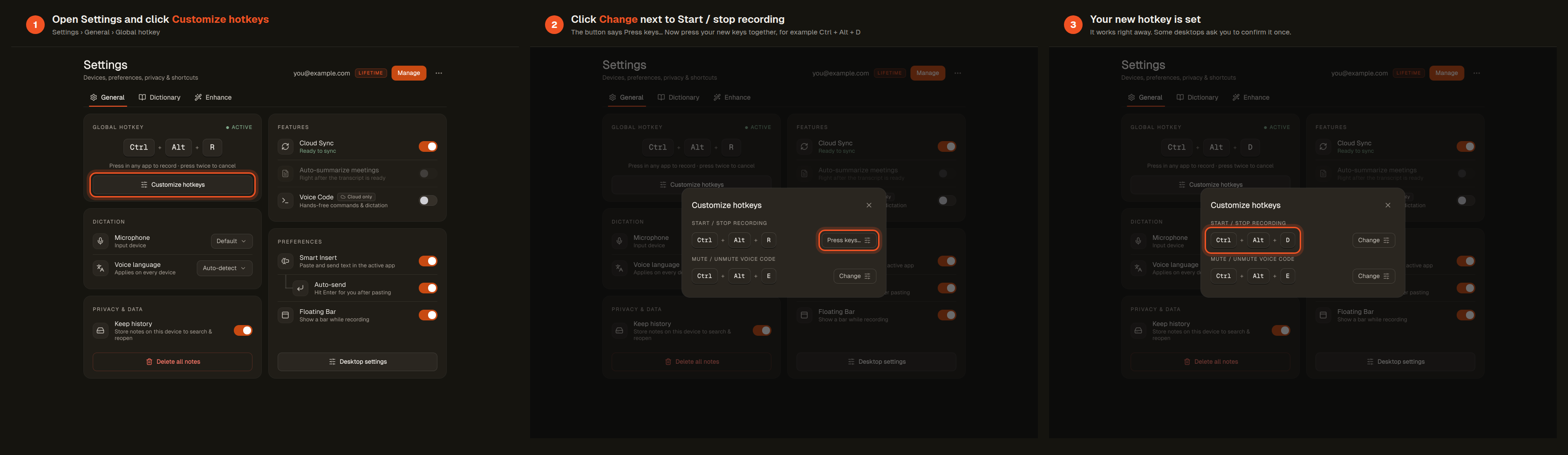
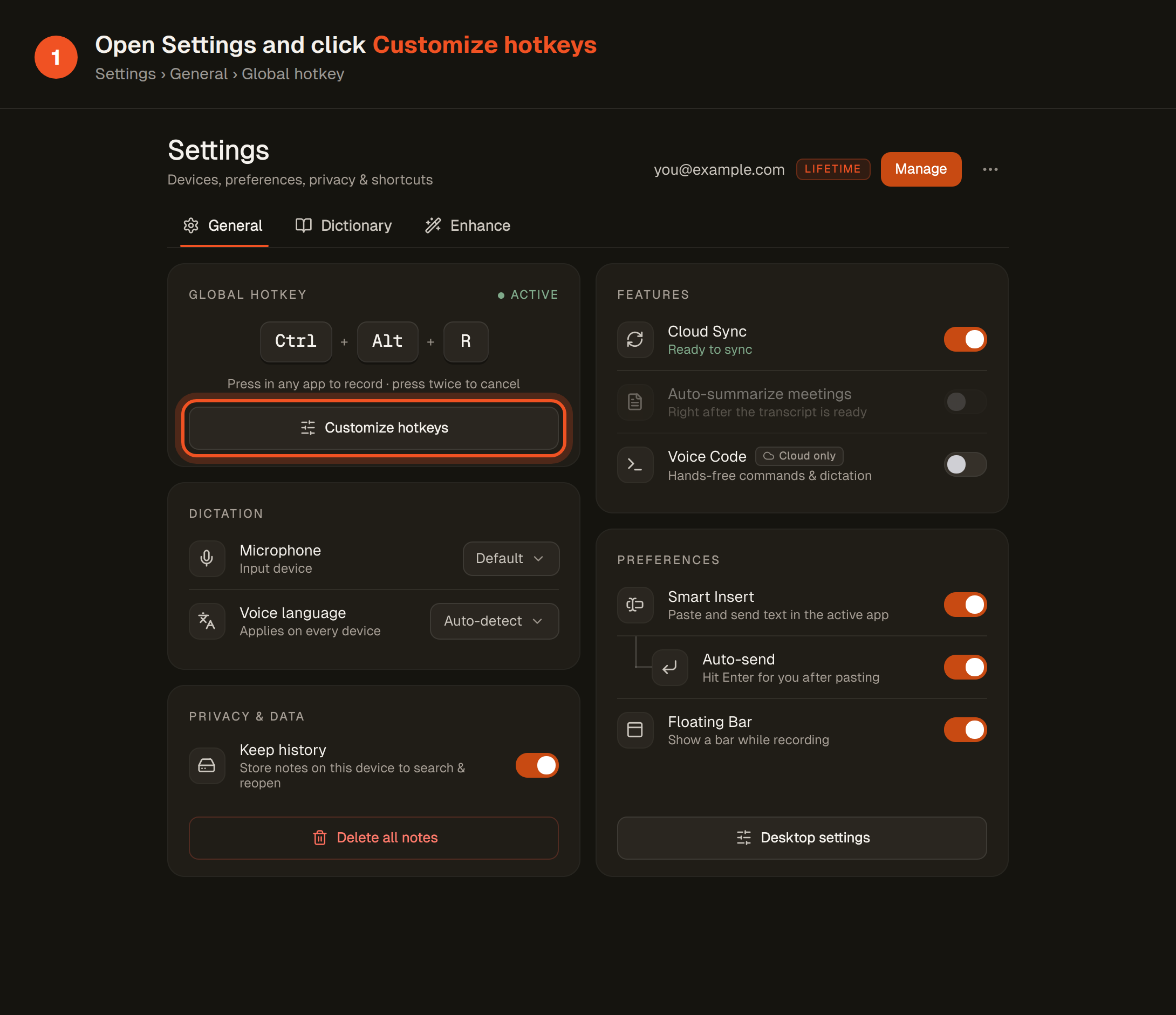
Step 1: Open Settings and click Customize hotkeys
- Launch AICHE from your application menu or system tray.
- In the navigation sidebar, click the Settings gear icon.
- Select the General tab at the top of the Settings window.
- Locate the Global Hotkey card. You will see the active shortcut (by default
Ctrl + Alt + R) with a green ACTIVE status indicator. - Click the Customize hotkeys button.
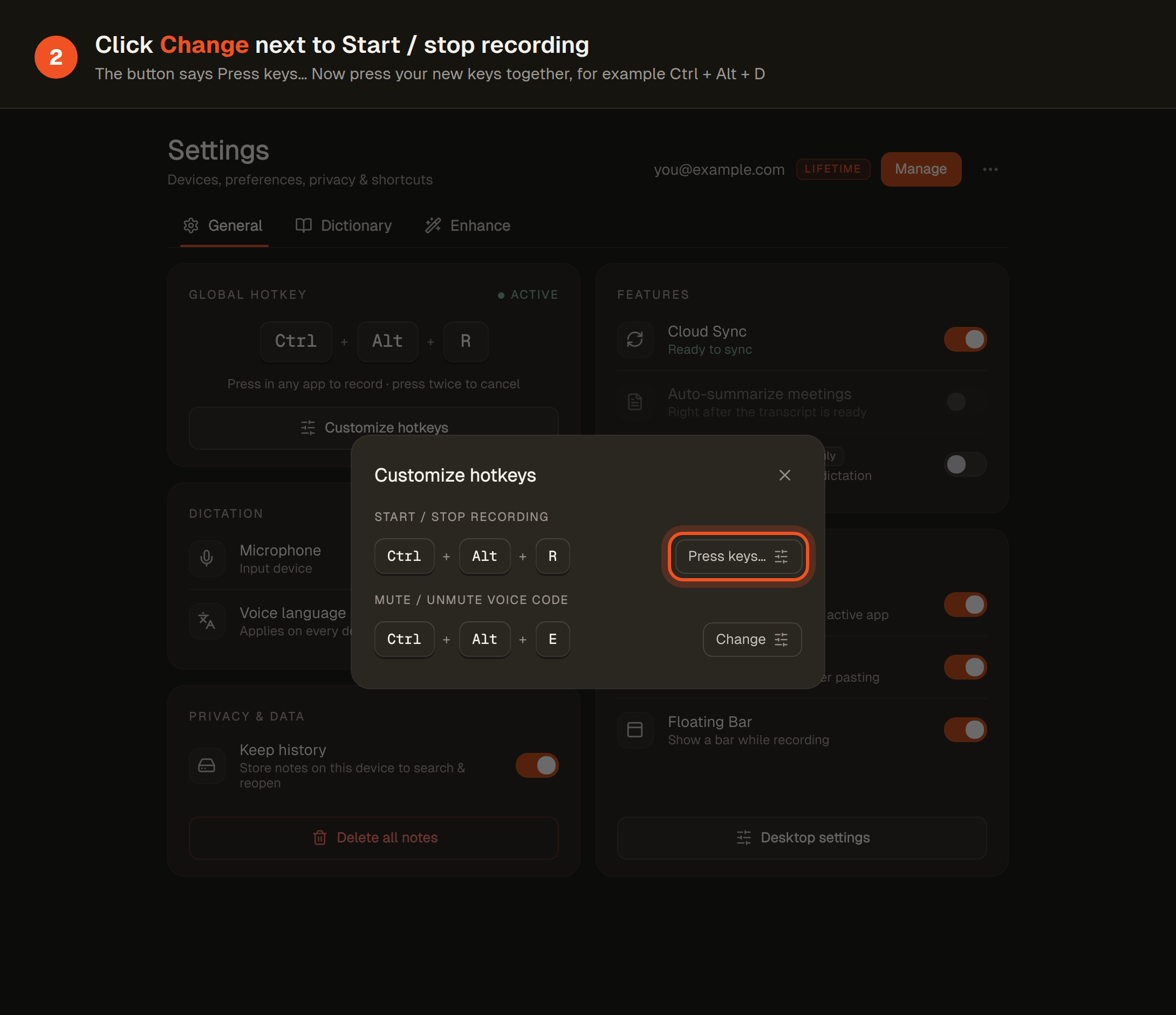
Step 2: Click Change and press your new keys
- In the Customize hotkeys dialog, locate the action you want to modify:
- Start / stop recording: controls global voice-to-text recording (default:
Ctrl + Alt + R). - Mute / unmute Voice Code: controls hands-free code dictation mute state (default:
Ctrl + Alt + E).
- Start / stop recording: controls global voice-to-text recording (default:
- Click the Change button next to the shortcut you want to update.
- The button label changes to Press keys... with an orange focus border.
- On your keyboard, press the keys you want to use together (for example,
Ctrl + Alt + D). - To cancel key capture without making changes, press
Escapeor click the close icon (✕) in the top-right corner of the dialog.
[!NOTE]
Global hotkeys require at least one modifier key (Ctrl,Alt,Shift, orSuper) paired with a standard character or function key.
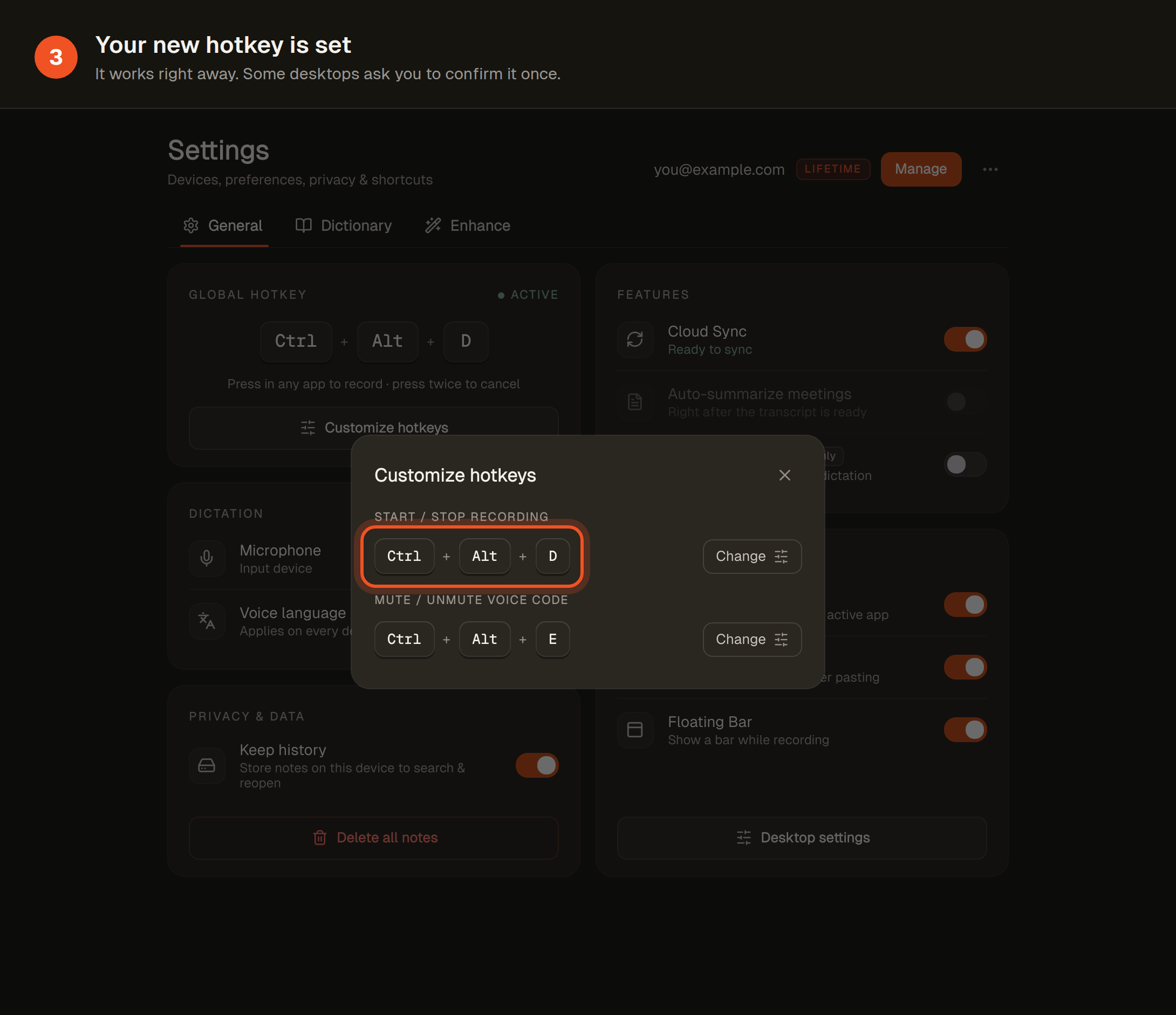
Step 3: Your new hotkey is set
- Your new key combination updates immediately in the dialog and on the main Settings screen.
- The indicator shows ACTIVE to confirm the shortcut is registered with your desktop environment.
- Close the settings dialog and press your new shortcut in any application (such as your terminal, text editor, or web browser) to test recording.
[!NOTE]
On Wayland systems running GNOME with the XDG Desktop Portal, your desktop environment may present a one-time system confirmation prompt asking for permission to bind the new global keybinding. Click Allow or Authorize to let AICHE handle the key press.
Troubleshooting & Tips
Shortcut does not trigger
- Check for desktop conflicts: If the shortcut is already claimed by your desktop environment (such as GNOME, KDE Plasma, or XFCE for window tiling, workspace switching, or screenshot utilities), the desktop manager intercepts the keystroke first. Pick an unused combination like
Ctrl + Alt + DorCtrl + Shift + R. - Wayland vs X11: AICHE automatically detects whether you run Wayland or X11. Under Wayland, shortcuts register through the desktop portal and GNOME Shell integration. Under X11, shortcuts bind through global grabs. If keybindings ever stop responding after a major display server restart, opening Settings and re-saving the shortcut re-registers the listener.
Cancel an in-progress recording
- Press your recording hotkey twice in quick succession to abort the active recording and discard the audio buffer without inserting text.
Related Guides
- Install AICHE on Linux: packages, repositories, and desktop integration
- Keyboard Shortcuts: complete shortcut reference across all platforms
- Smart Insert: cursor insertion setup on Wayland and X11
- Voice Code: real-time streaming dictation and developer commands