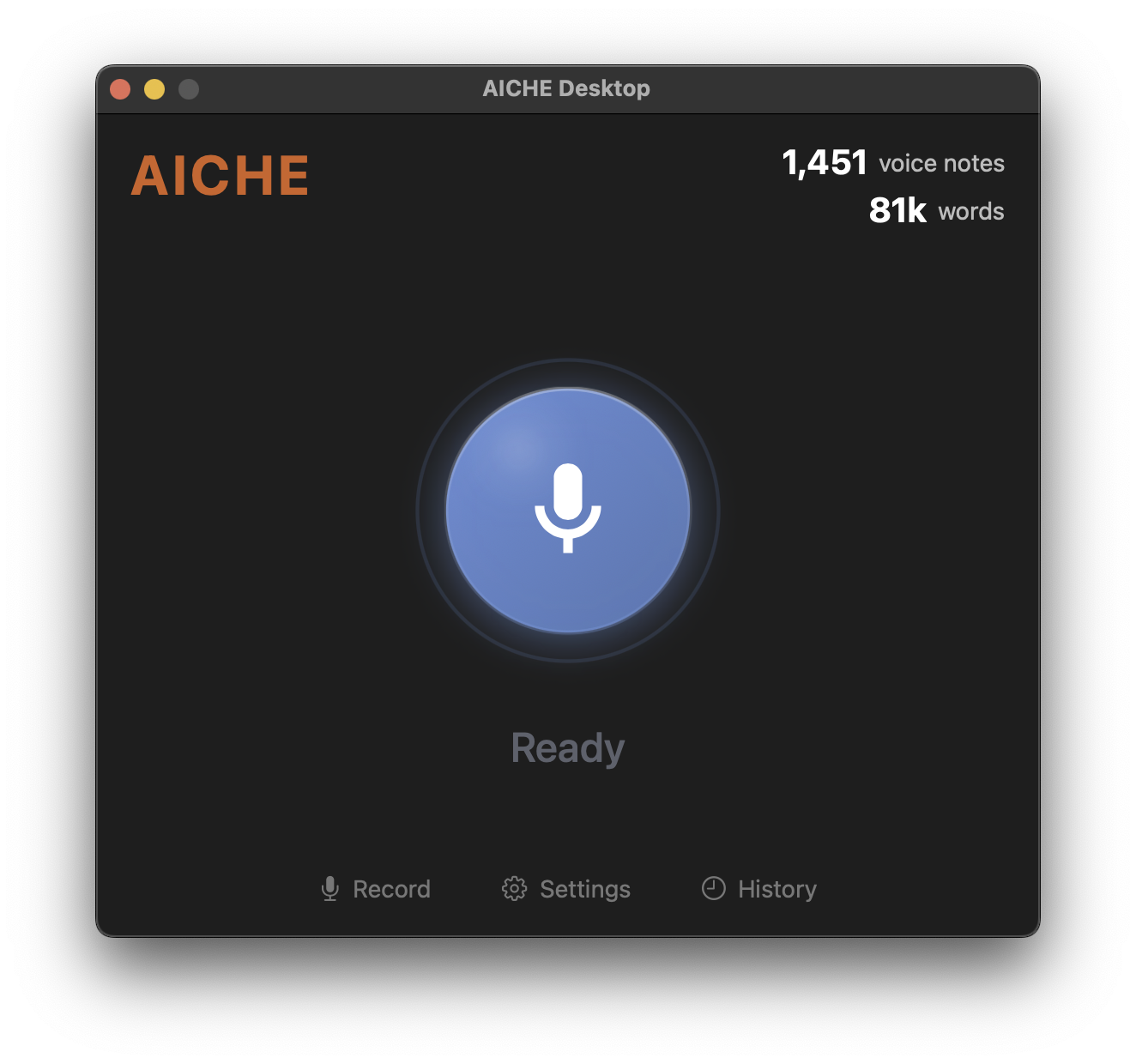
Requires macOS 13 (Ventura) or newer. Separate builds for Apple Silicon and Intel.
Installation
Option 1: Homebrew
brew install --cask aiche-desktop
Option 2: Direct Download
- Download the DMG (ARM64 for Apple Silicon, Intel for older Macs) from your downloads page
- Open the DMG, drag AICHE to Applications
- Launch from Applications
The app is signed with Developer ID and notarized with Apple.
Updates
AICHE checks for updates automatically. When an update is available, a dialog appears in the app.
Permissions
Microphone (required)
Prompted on your first recording. Click Allow. If denied: System Settings > Privacy & Security > Microphone > enable AICHE.
Accessibility (required for Smart Insert)
Needed so AICHE can type text into other apps via global hotkeys. One-time alert on first launch. If hotkeys don't work: System Settings > Privacy & Security > Accessibility > enable AICHE.
Notifications (optional)
Alerts you when transcription is complete.
Sign In
- Click Sign In in the app
- Your browser opens for Google authentication
- Browser redirects back to AICHE via
aiche://URL scheme - The app activates automatically
Keyboard Shortcuts
| Shortcut | Action |
|---|---|
Control + Option + R |
Start/stop recording |
Control + Option + . |
Toggle Voice Code on/off |
Control + Option + E |
Mute/unmute Voice Code |
| Double-press record key | Cancel recording |
Features
Smart Insert
Text appears where your cursor is. No copy-paste. Requires Accessibility permission.
Voice Code
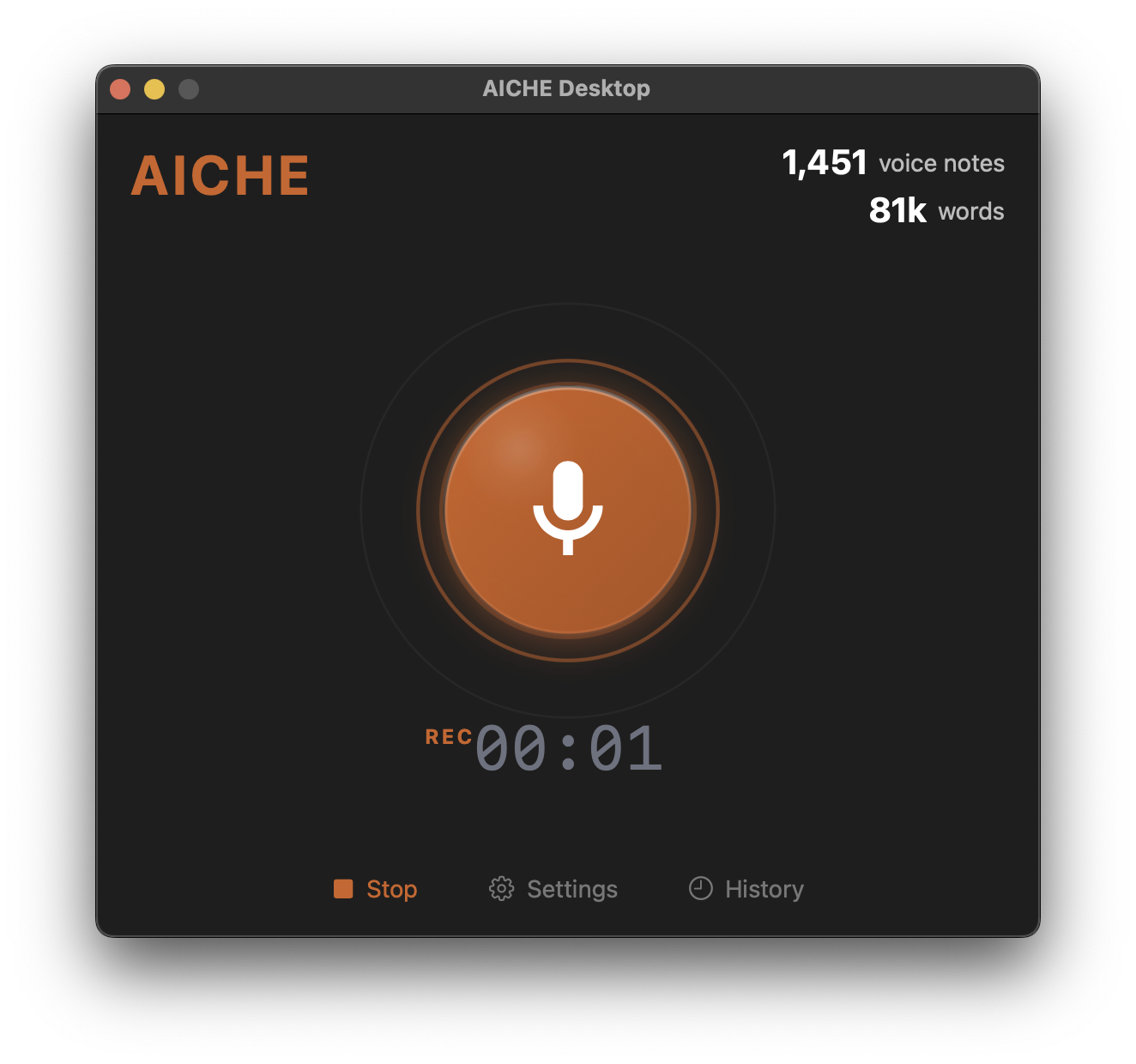
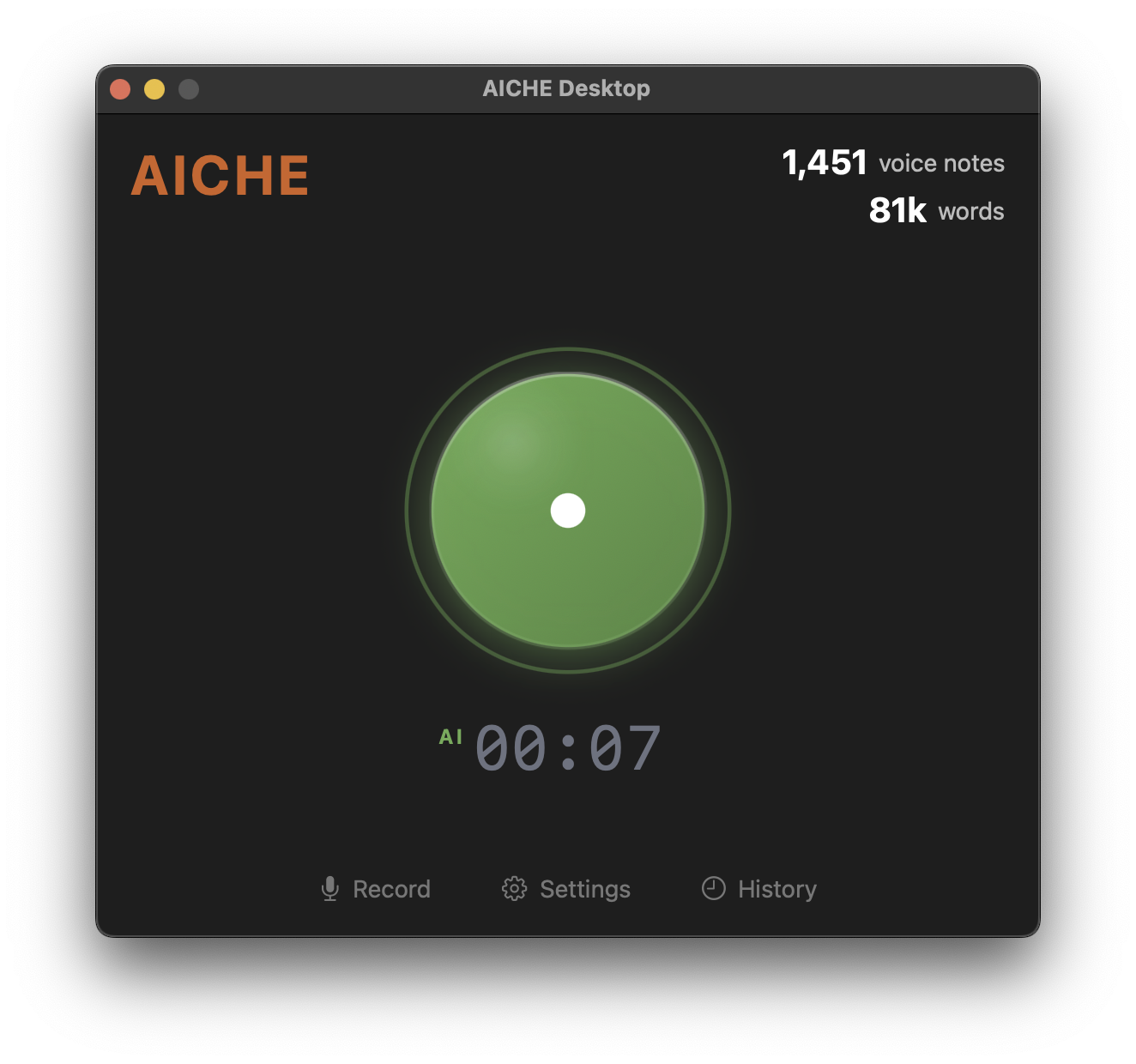
Hands-free dictation for coding. Toggle with Control + Option + .. Voice commands work with numbered suggestions in Cursor and VS Code. Floating overlay shows state.
Note: ~2 second delay on first speech after cold start (audio encoding init). Instant after that.
Personal Dictionary
Add words the AI gets wrong - names, jargon, product names. Up to 50 entries with optional "sounds like" hints. Settings > Dictionary. Server-side, so changes work on all your devices instantly.
AI Enhancements
- Message Ready - polishes casual speech for professional use
- Make English - translates any language to English
- Clean Language - removes inappropriate words
- Content Organize - Off, Light, Medium, or Strong structure
- Software Development - vocabulary profile for technical terms
Cloud Sync
E2E encrypted sync across all devices. Set a passphrase in Settings. Uses AES-256-GCM + Argon2id. AICHE cannot read your data.
Always on Top
Keep the window visible while working in other apps.
Session Mode
Long recordings auto-segment after 30 seconds for faster processing.
Menu Bar
Star icon in your menu bar:
- Red during recording, green during processing
- Click to show/hide main window
- Right-click for quick actions