Native Wayland (GNOME) and X11 support. Officially featured by Canonical in the Ubuntu App Center.
Tested distributions
- Ubuntu 25, 24, 22: Featured on Ubuntu App Center (Snap), apt script, DEB, AppImage, Flatpak
- Debian 12: apt script, DEB, AppImage, Flatpak
- Linux Mint 22: apt script, DEB, AppImage, Flatpak, Snap
- Fedora 44, 43, 42: RPM, AppImage, Flatpak
Other Debian-based distros likely work via the apt script or DEB; the AppImage and Flatpak run on most modern x86_64 systems.
Installation
Option 1: Snap (Featured on Ubuntu App Center)
AICHE Desktop is officially featured by Canonical in the Ubuntu App Center (Snap Store) under Featured Snaps.
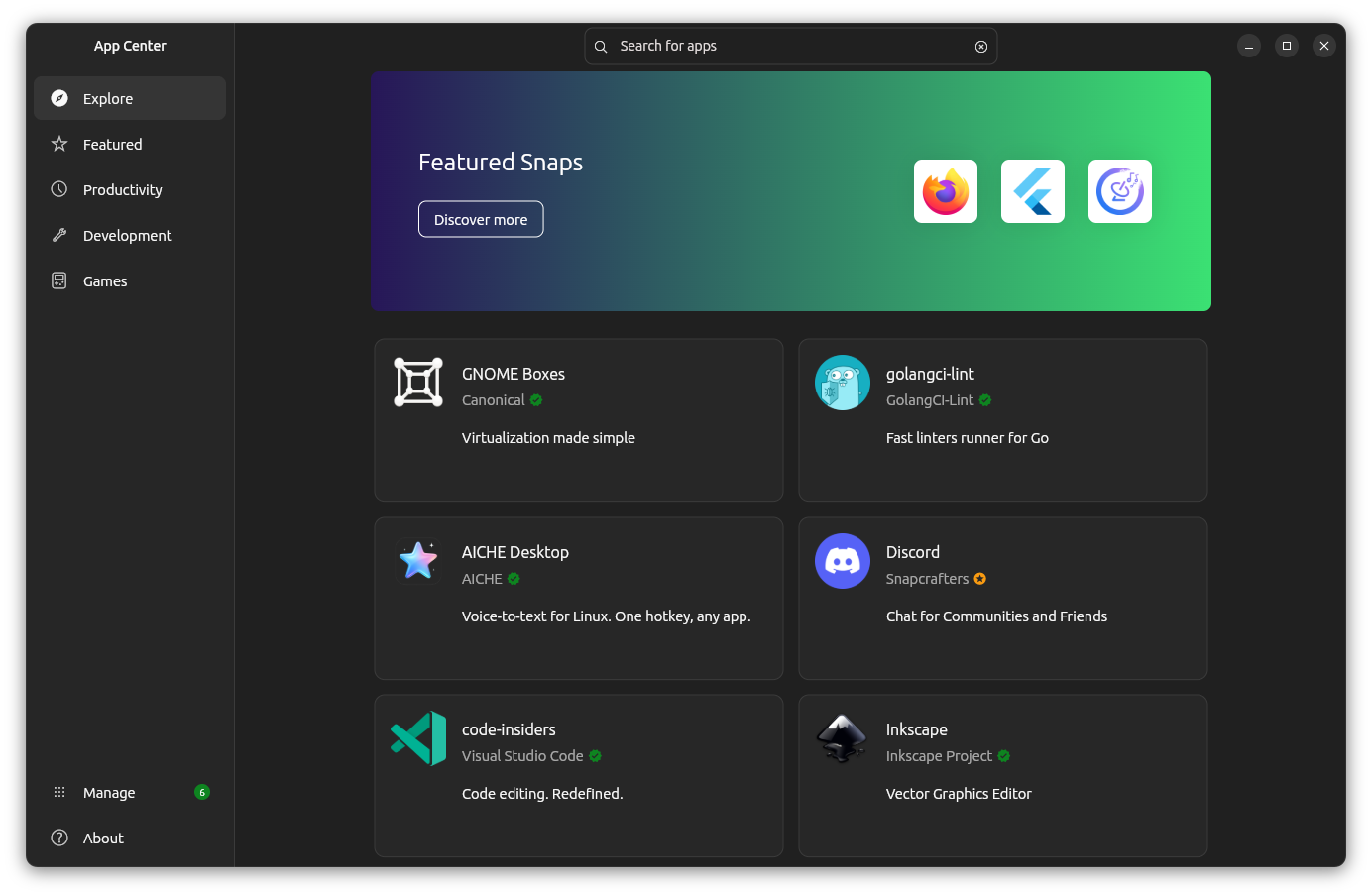
AICHE Desktop provides system-wide voice-to-text with one hotkey across any application, running natively on both Wayland (GNOME) and X11 with zero audio retention.
One-Click Install
Install directly from the Ubuntu App Center by searching for AICHE Desktop, or open the Snap Store:

Terminal Install
You can also install the verified snap package directly from your terminal:
sudo snap install aiche-desktop
Snaps deliver seamless automatic background updates, strict confinement security, and verified desktop integration for Ubuntu 25, 24.04 LTS, 22.04 LTS, and all Linux distributions with snapd installed.
Option 2: apt repository (Ubuntu / Debian / Mint) - Recommended for APT
The fastest apt way. Adds the AICHE apt repository and installs the latest version:
sudo apt update && sudo apt install -y curl && curl -fsSL https://apt.aiche.app/install.sh | sudo bash
Future updates arrive via apt upgrade like any system package.
You can also download the .deb directly from your downloads page and install it manually:
sudo apt install -f ./aiche-desktop_X.X.X_amd64.deb
Option 3: RPM Package (Fedora)
Download the .rpm from your downloads page, then:
sudo rpm -i aiche-desktop-X.X.X.x86_64.rpm
Or with dnf:
sudo dnf install ./aiche-desktop-X.X.X.x86_64.rpm
Option 4: AppImage (Universal)
Works on most x86_64 Linux distributions. No install required.
chmod +x AICHE-Desktop-X.X.X.AppImage
./AICHE-Desktop-X.X.X.AppImage
Self-contained, auto-updates via embedded update tool.
Option 5: Flatpak (Universal)
Works on Ubuntu, Debian, Fedora, and most modern distros.
Download the .flatpak from your downloads page, then:
flatpak install --bundle aiche-desktop.flatpak
flatpak run app.aiche.desktop
Permissions
Microphone
Automatic on most distros. If recording fails, check PulseAudio/PipeWire is running and AICHE has mic access.
Smart Insert on Wayland (GNOME)
Smart Insert needs extra permissions on Wayland. AICHE shows a setup prompt on first use with a one-click fix. If it doesn't work, check the troubleshooting section below.
Floating Bar on Wayland
The floating recording overlay uses a GNOME Shell extension. The DEB and RPM packages install it automatically.
Sign In
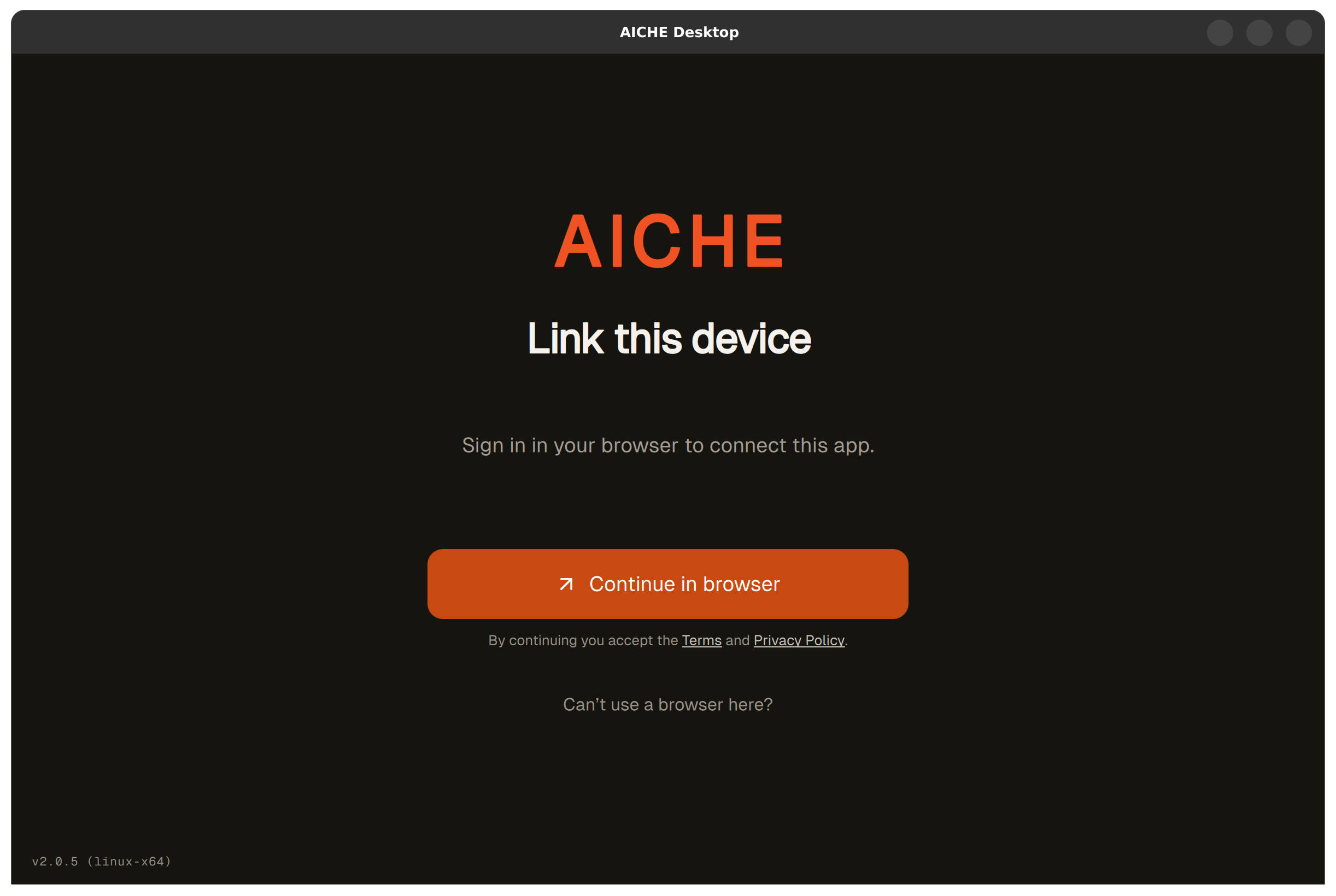
- Click Continue in browser in the app
- Your browser opens for Google authentication
- Browser redirects back via
aiche://protocol handler (auto-registered on install) - The app activates
Keyboard Shortcuts
| Shortcut | Action |
|---|---|
Ctrl + Alt + R |
Start/stop recording |
Ctrl + Alt + E |
Toggle Voice Code mute |
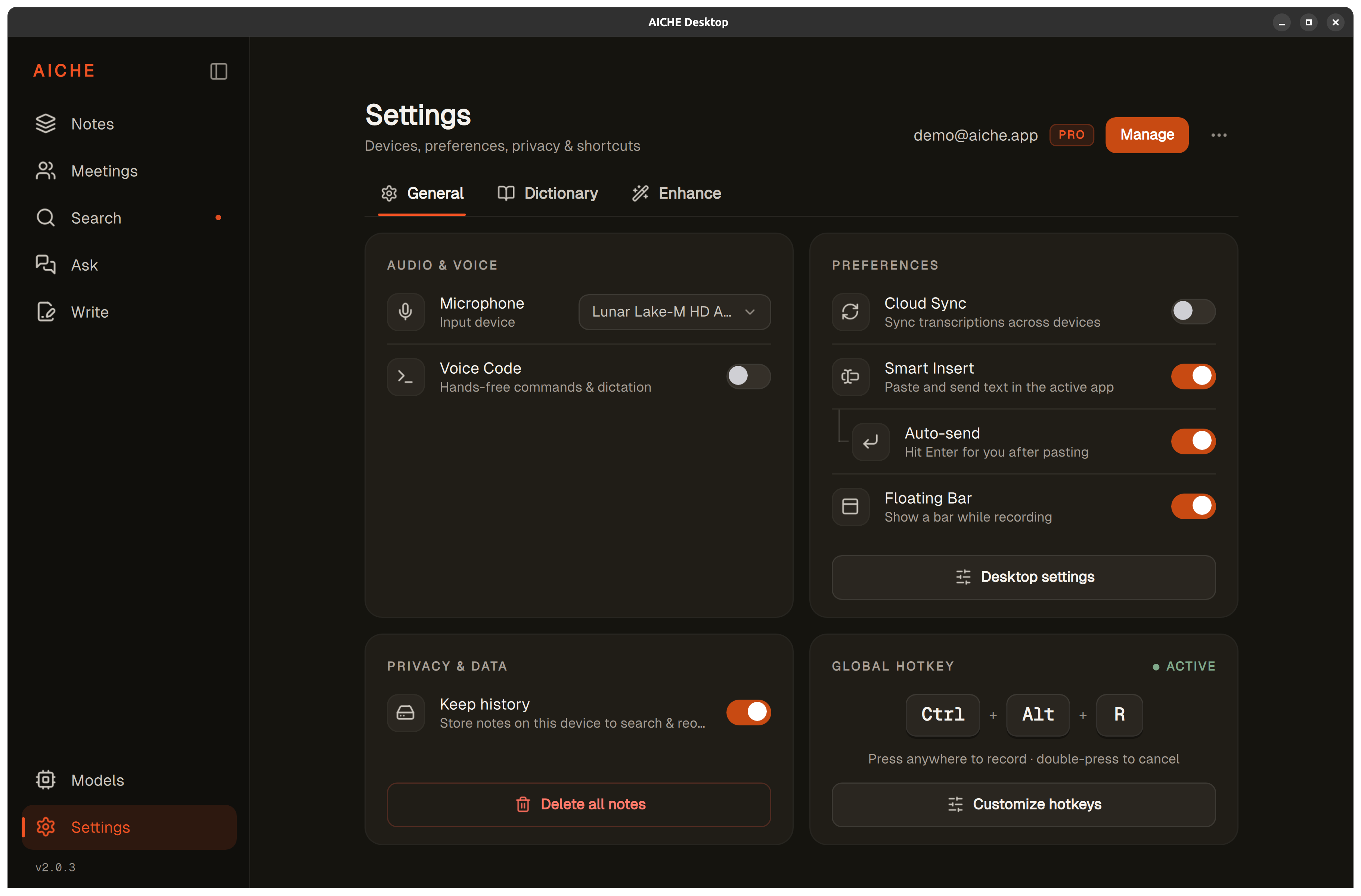
Shortcuts registered via GNOME gsettings custom keybindings. You can change them in Settings → General → Customize hotkeys.
Features
Smart Insert
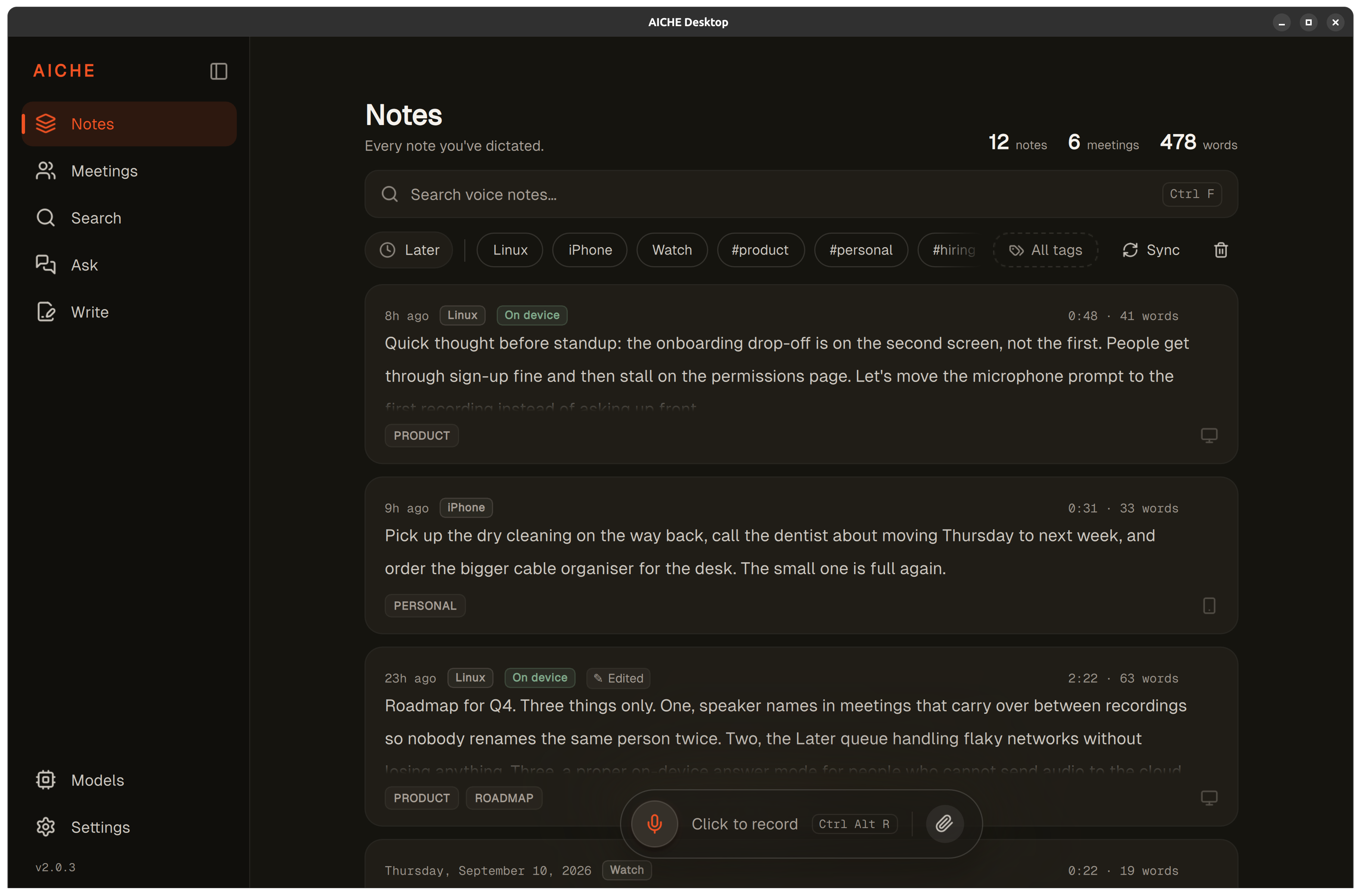
Text appears where your cursor is. No copy, no paste.
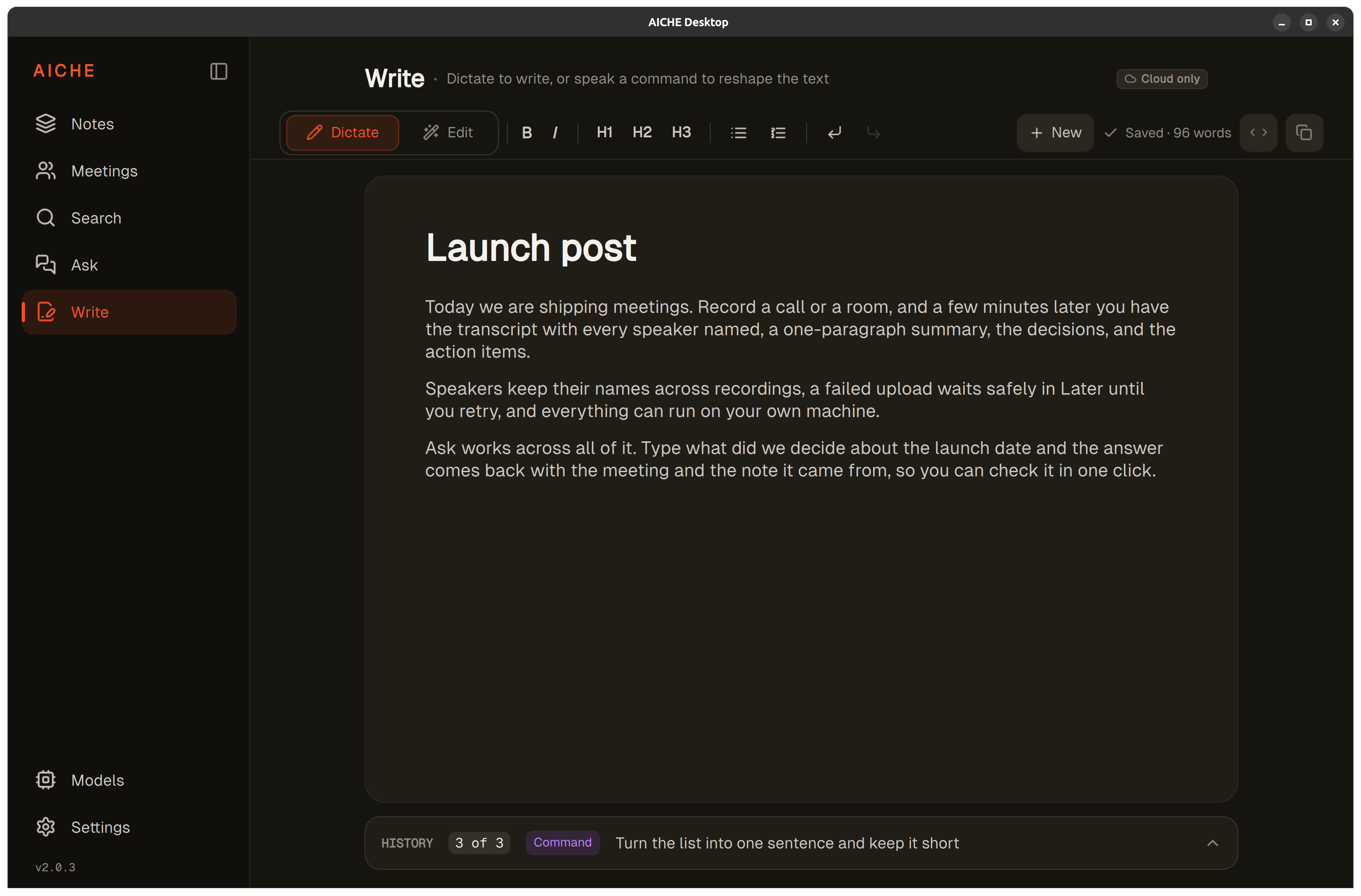
Voice Code
Real-time dictation as you speak. A floating overlay shows the transcription, which inserts into your last focused window.
Personal Dictionary
Add words the AI gets wrong. Up to 50 entries. Server-side. Works on all your devices.
AI Enhancements
Message Ready, Make English, Clean Language, Content Organize, Software Development vocabulary.
Cloud Sync
E2E encrypted. Set a passphrase. AICHE cannot read your data.
System Tray
Tray icon shows recording status. Click to show/hide.
Wayland vs X11
Both fully supported. Wayland is the primary target (Ubuntu default since 22.04). The app auto-detects your display server.
Wayland-specific: Floating bar uses GNOME Shell extension. Smart Insert uses ydotool.
X11-specific: Uses xcb platform plugin. Smart Insert uses xdotool.
Known Issues
- Floating bar behind windows: GNOME extension needs to be enabled. Check Settings > Extensions.
- Smart Insert doesn't work on Wayland: The app needs input device access. Re-run the setup from Settings or contact support.
- Global hotkey not working: Re-register in GNOME Keyboard Settings > Custom Shortcuts.
- AppImage won't start: Make sure the file is executable (right-click > Properties > Permissions).
- No audio device: Check your audio system (PulseAudio or PipeWire) is running.