Requires Windows 10 x64 or newer.
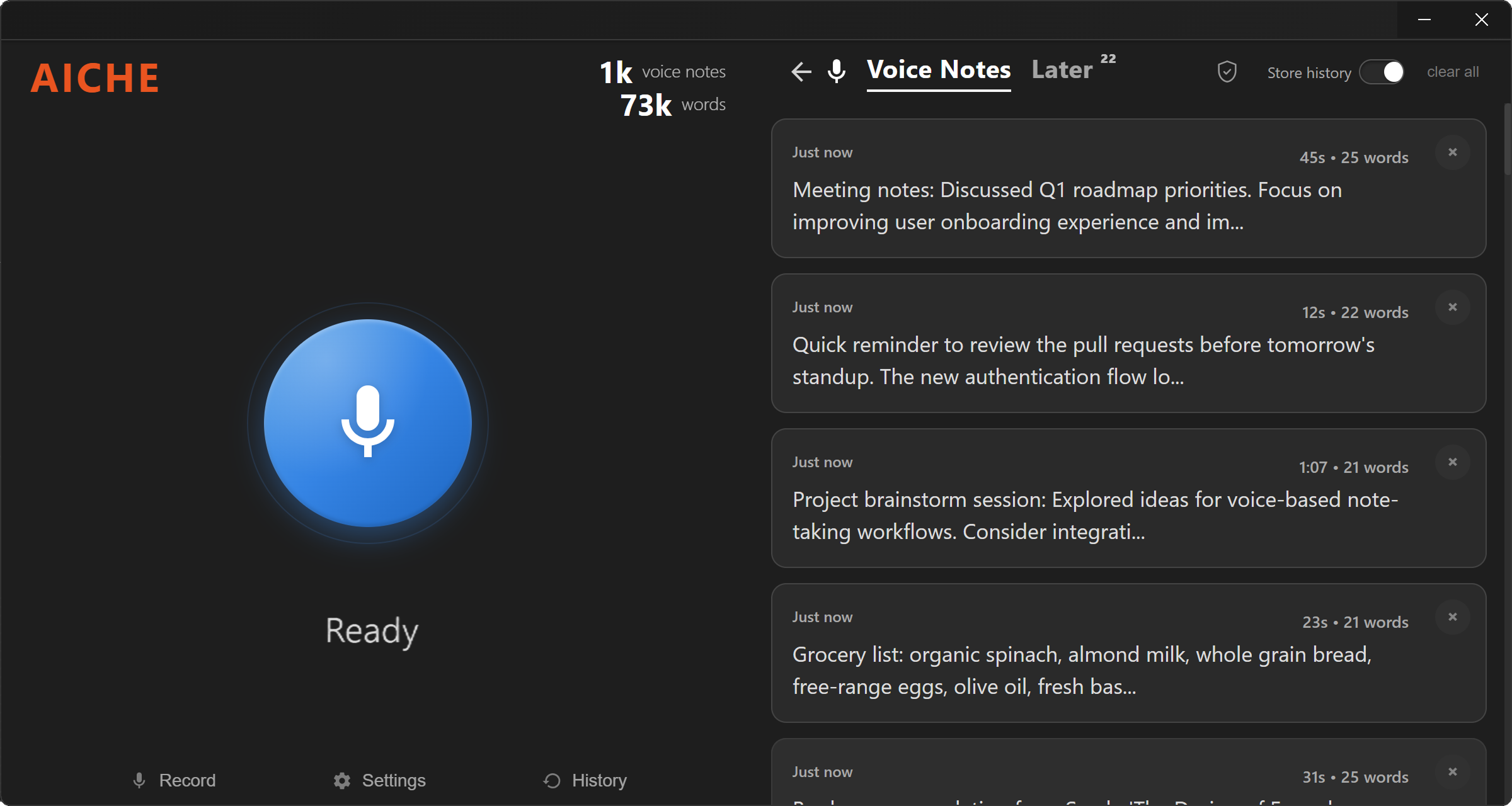
Installation
Option 1: Installer
- Download the installer (.exe) from your downloads page
- Run the setup wizard - choose your install directory
- Launch AICHE from the Start menu
Option 2: Portable
Download the portable .exe - runs directly from your Downloads folder with no installation.
Updates
AICHE auto-updates silently via GitHub Releases.
SmartScreen warning: If Windows shows a SmartScreen warning, click "More info" then "Run anyway". This happens because the build is not yet code-signed with an EV certificate.
Permissions
Microphone (required)
Windows prompts for mic access on first recording. Click Yes.
No admin rights needed - AICHE runs as a standard user.
Sign In
- Click Sign In in the app
- Your browser opens for Google authentication
- Browser redirects back via
aiche://URL scheme - The app activates automatically
Tokens stored in Windows Credential Manager.
Keyboard Shortcuts
| Shortcut | Action |
|---|---|
Ctrl + Alt + R |
Start/stop recording |
Ctrl + Alt + . |
Toggle Voice Code on/off |
Ctrl + Alt + A |
Show/focus AICHE window |
Escape |
Cancel recording (while recording) |
Features
Smart Insert
Text appears where your cursor is, in any app. No copy, no paste.
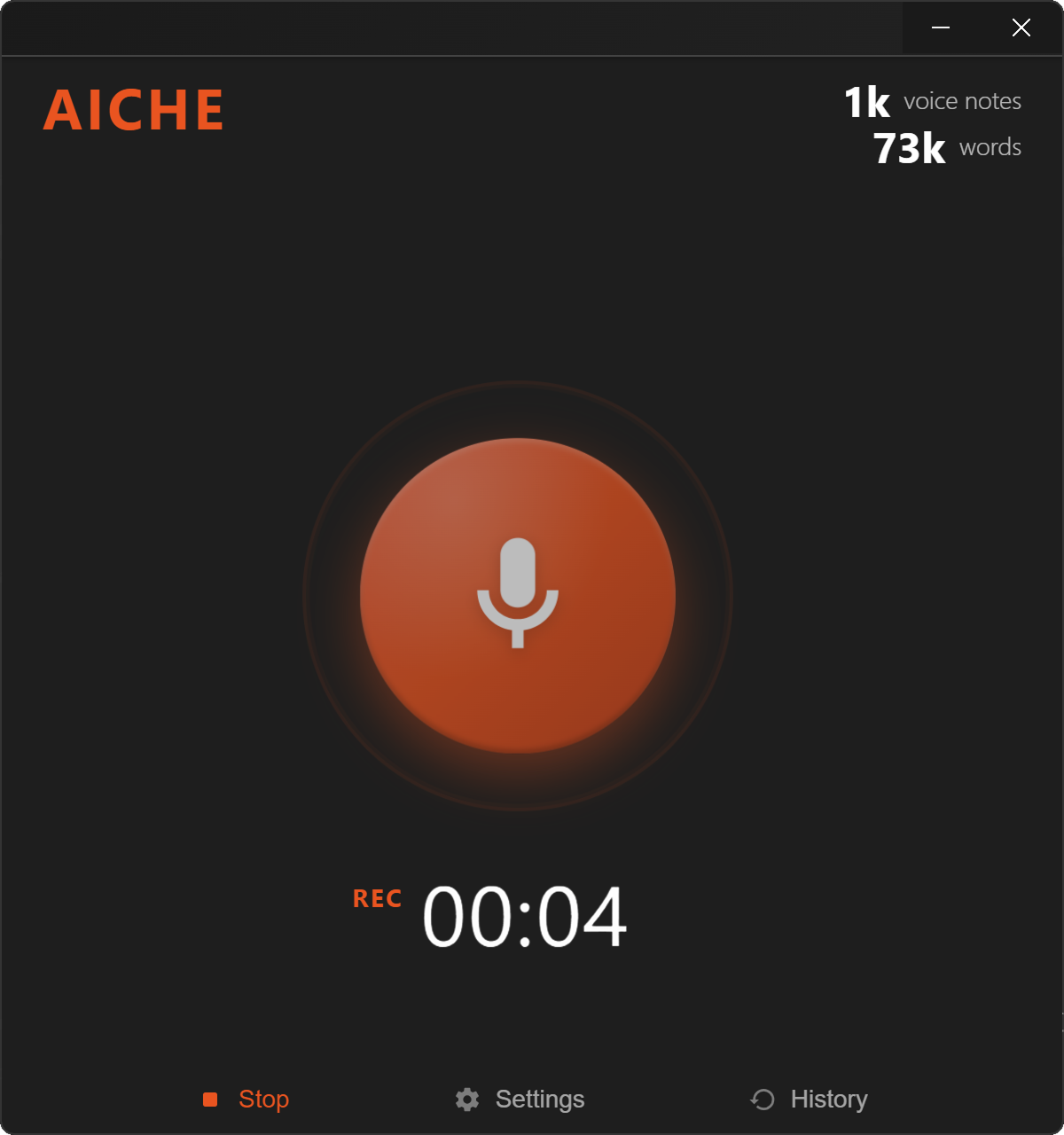
Voice Code
Hands-free dictation for coding. Toggle with Ctrl + Alt + .. Speak and text streams into your editor in real time. Voice commands let you pick numbered suggestions in Cursor and VS Code.
Personal Dictionary
Add words the AI gets wrong. Up to 50 entries with "sounds like" hints. Server-side - works on all your devices.
AI Enhancements
- Message Ready - polishes casual speech
- Make English - translates any language to English
- Clean Language - removes inappropriate words
- Content Organize - Off, Light, Medium, or Strong
- Software Development - technical vocabulary profile
Cloud Sync
E2E encrypted sync. Set a passphrase - AICHE cannot read your data. AES-256-GCM + Argon2id.
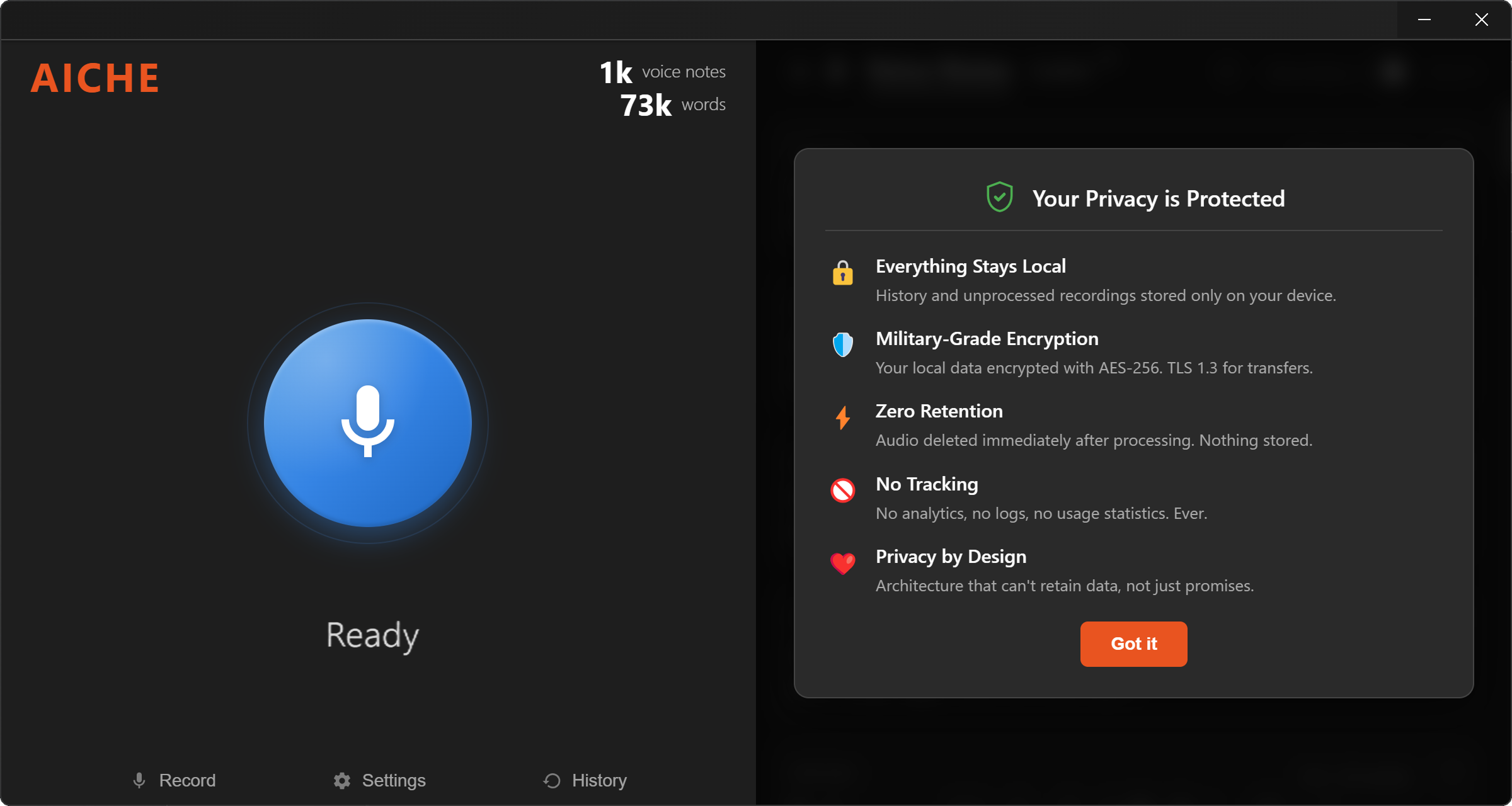
Floating Bar
Recording overlay with three modes: Activity Only, Always Visible, or Off.
Unprocessed Recordings
If an upload fails, recordings save locally for retry. Check the unprocessed recordings manager in the app.
System Tray
AICHE minimizes to the system tray (configurable):
- Icon shows idle, recording, or processing state
- Icon flashes during recording
- Right-click: Record, Show Window, Quit
Auto-launch
AICHE can start with Windows. Toggle in Settings.
Known Issues
- SmartScreen warning: Click "More info" > "Run anyway" on first launch
- VPN clients (Hiddify, Clash): App auto-detects proxy settings from Windows registry
- Long audio device names: May overflow the dropdown - full name shows on hover