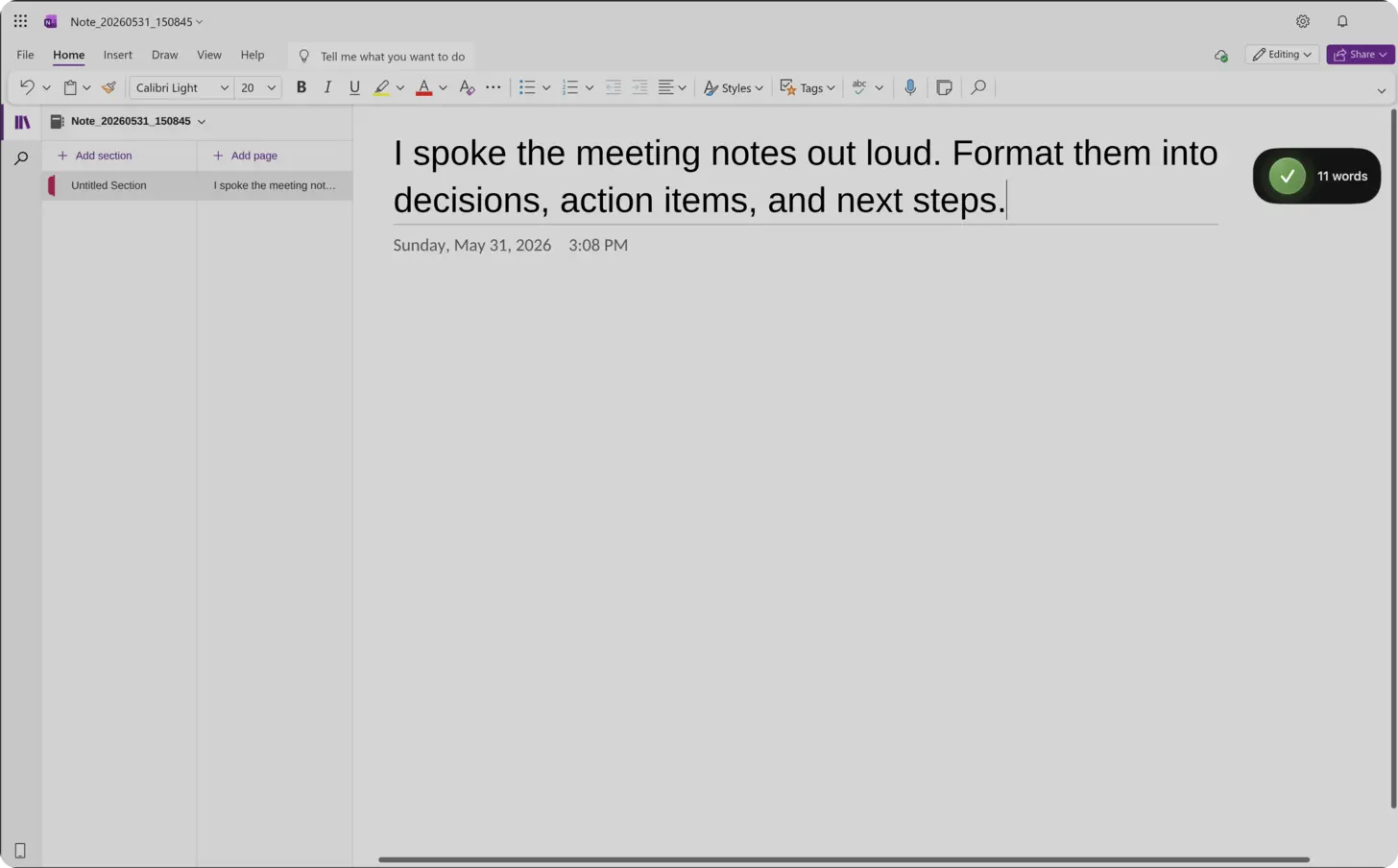
The short answer: open OneNote, click into any page section, press ⌃+⌥+R (Mac) or Ctrl+Alt+R (Windows), speak for 30-90 seconds, and AICHE transcribes and inserts the formatted text where your cursor sits.
OneNote's free-form canvas lets you place text containers anywhere on a page, not just top to bottom. That flexibility is great for organizing, but desktop OneNote lacks built-in voice input. You either type everything manually, switch to your phone for mobile dictation, or paste from another app. During meetings, trying to type notes while listening means you miss details or fall behind. AICHE bridges that gap by letting you speak directly into any text container on any page.
- Open the OneNote desktop app or web version in your browser.
- Navigate to the notebook, section, and page where you want content.
- Click into an existing text container, or click on empty canvas space to create a new one.
- Press your AICHE hotkey (⌃+⌥+R on Mac, Ctrl+Alt+R on Windows) to start recording.
- Speak your notes, ideas, or meeting minutes naturally. Talk for as long as you need.
- Press the hotkey again. AICHE transcribes and inserts the text at your cursor position.
- Continue adding to other sections, or create new pages for different topics.
Meeting Notes During Teams Calls
OneNote integrates tightly with Microsoft Teams. Many teams keep a shared OneNote notebook linked to their Teams channel. During meetings, you can have OneNote open on one side of your screen and Teams on the other.
When someone raises an action item or makes a decision, press Ctrl+Alt+R and speak it: "Sarah will deliver the API spec by Friday. Budget approved for two additional contractors starting March." Press the hotkey again, and the text lands in your meeting notes page. You stay engaged in the conversation instead of heads-down typing. After the meeting, the notes are already organized by section, and your colleagues can see them in the shared notebook immediately.
This approach also works during screen-sharing sessions. Since AICHE uses a system hotkey, it operates independently from whatever app is in the foreground. You can dictate into OneNote even while presenting slides in PowerPoint or demoing in a browser.
Research Notebooks and Reference Material
OneNote's notebook structure - notebooks containing sections containing pages - mirrors how researchers organize information. A graduate student might have a notebook per course, a project manager might have one per client, and a writer might have one per book.
The challenge is filling those pages. Research notes require capturing sources, quoting findings, summarizing arguments, and recording your own analysis. Typing all of this while reading papers or watching lectures splits your attention. With AICHE, you read a paragraph or listen to a point, press the hotkey, and speak your summary or reaction. The text inserts into the current page without leaving your reading flow.
Enable Content Organization in AICHE settings to automatically structure longer dictation into organized paragraphs. When you speak three minutes of observations about a research paper, AICHE separates them into coherent sections rather than dumping a wall of text.
Class Notes and Lecture Capture
Students using OneNote for lectures face a constant tradeoff: type fast and miss nuance, or listen carefully and capture less. AICHE changes that equation. During a lecture, press the hotkey during natural pauses, speak a summary of the last few points, and let AICHE insert structured text.
This works especially well with OneNote's section tabs. Create tabs for Key Concepts, Examples, Questions, and Review. Dictate into each section as the lecture progresses. After class, your notes are already organized rather than a single stream of chronological text that needs restructuring.
OneNote's ink support also pairs well with dictation. Sketch a diagram by hand, then dictate an explanation below it. Visual and verbal notes together create stronger study material than either alone.
Tips for OneNote Users
Create section headers before meetings or lectures, then dictate content into each section. This keeps your notes organized as you capture them rather than requiring a reorganization pass later. OneNote preserves formatting within text containers, so transcribed text adopts the font and style you've set for that section.
If you use OneNote on both Mac and Windows, remember the hotkeys differ: ⌃+⌥+R on Mac, Ctrl+Alt+R on Windows. The behavior is identical on both platforms.
Heads-up: when dictating into OneNote's free-form canvas, click precisely where you want the text. If you click empty space, OneNote creates a new text container at that position. If you click inside an existing container, AICHE inserts text there. Cursor placement determines where your words land.
Pro tip: during meetings, create section headers first (Action Items, Decisions, Discussion Points), then dictate content into each section. This maintains structure without interrupting your listening.
Result: a 600-word meeting summary that takes 14 minutes to type becomes 3 minutes of dictation, and you capture decisions in real time instead of reconstructing them from memory after the meeting ends.
Do this now: open a OneNote page, create three section headers for your next meeting, press your hotkey, and dictate a summary of your last meeting into the appropriate sections.