This guide shows you how to search your notes and meeting transcripts for a word, phrase, or topic you remember.
Before you start
Search looks through notes and meeting transcripts already in your AICHE library. You can use Search without downloading local models.
Step 1: Open Search and enter what you remember
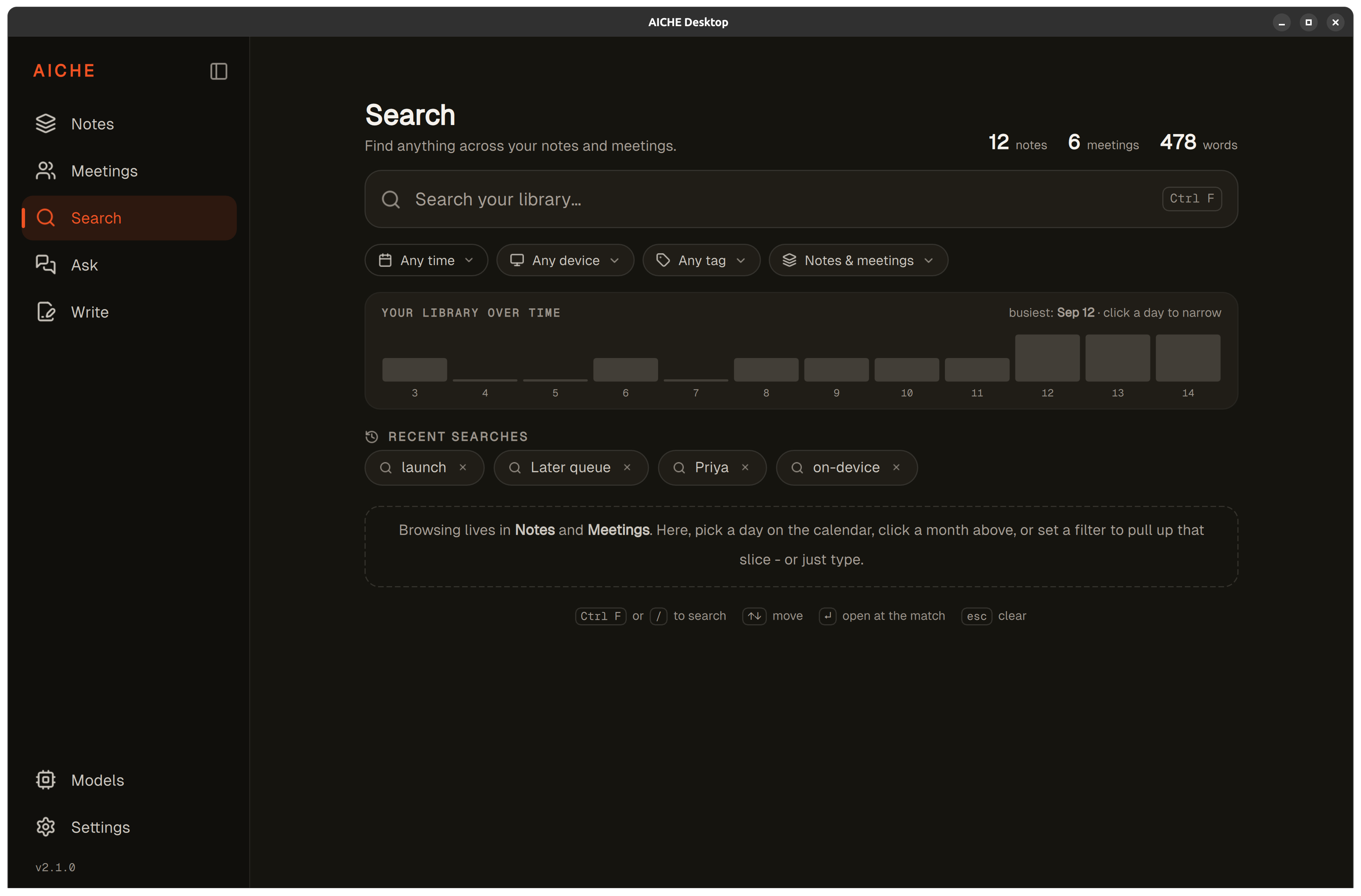
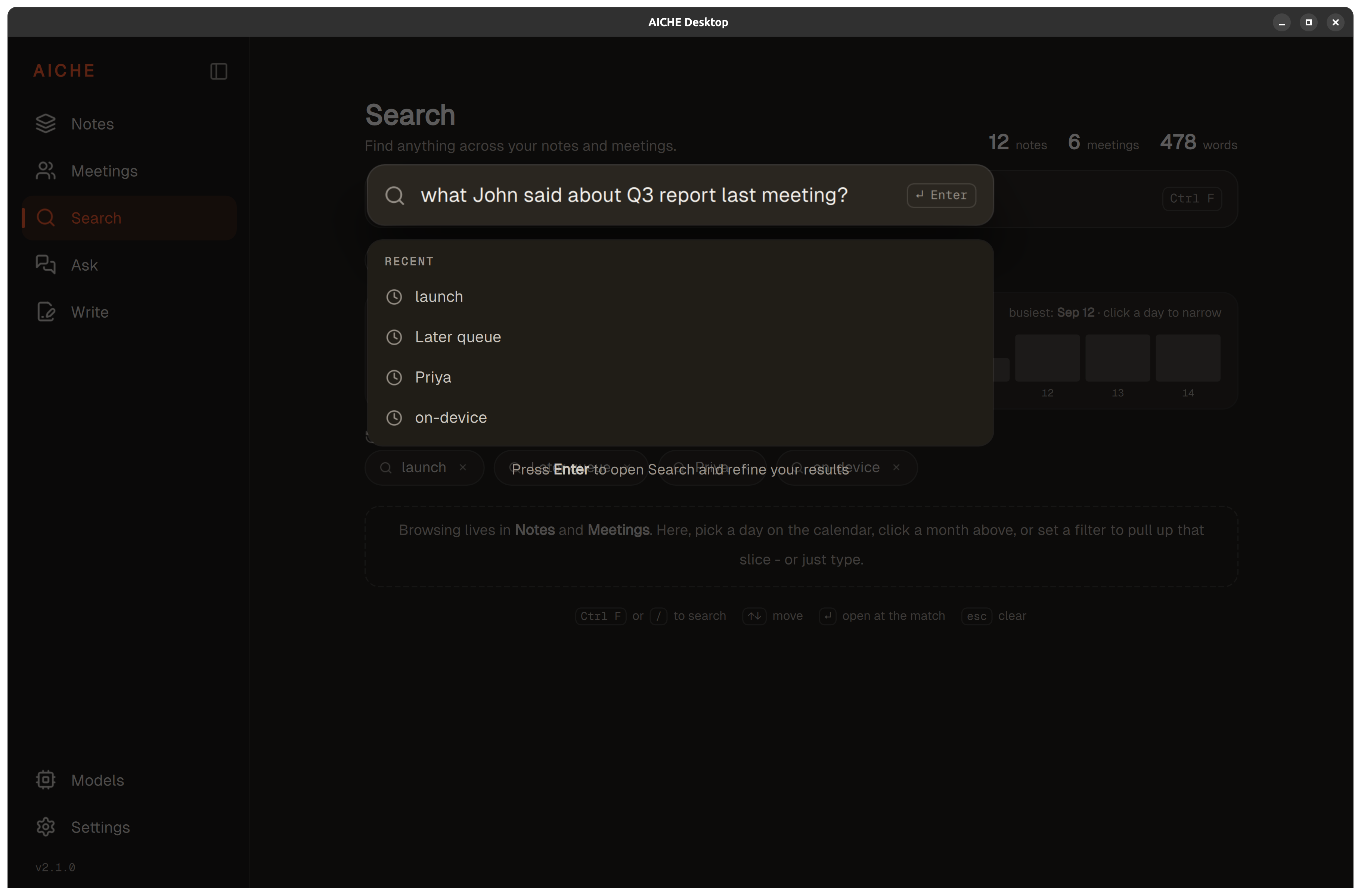
Select Search in the sidebar. Use the Search your library... field, enter a word, phrase, or topic, and press Enter to view the results.
Step 2: Read the two kinds of results
Word matches come first: passages that match your search words. Below them, Close in meaning shows related passages even when the original wording is different. Both groups link to the original notes and meeting transcripts.
Step 3: Narrow or broaden the results
Use the filters above the results to focus your search:
- Any time: filter by date
- Any device: filter by source device
- Any tag: filter using existing user tags
- Notes & meetings: choose Notes only, Meetings only, or both
- Clear filters: remove all filters
Combine filters to narrow the results, or remove one to broaden them. The tag filter uses tags on the current device. For adding tags to notes, see Record and organize voice notes on Linux.
Step 4: Browse by date instead
Select a day or month to browse the items from that period, even with the query empty.
Step 5: Open and read the source
Select a result to open the note or matching meeting passage. Meeting results show the speaker and timestamp to help you locate that part of the transcript. Read the surrounding text for context.
Reuse a recent search
In Recent searches, select an earlier query to run it again. Recent searches are kept on the current device.
Optional: run meaning search locally
Keyword search already runs on your device. For offline meaning-based search, open Models, enable Smart Search, and download the model if prompted. Wait for Running here before using it offline. On-device models require AICHE Professional. See Set up on-device processing on Linux for the full setup guide.
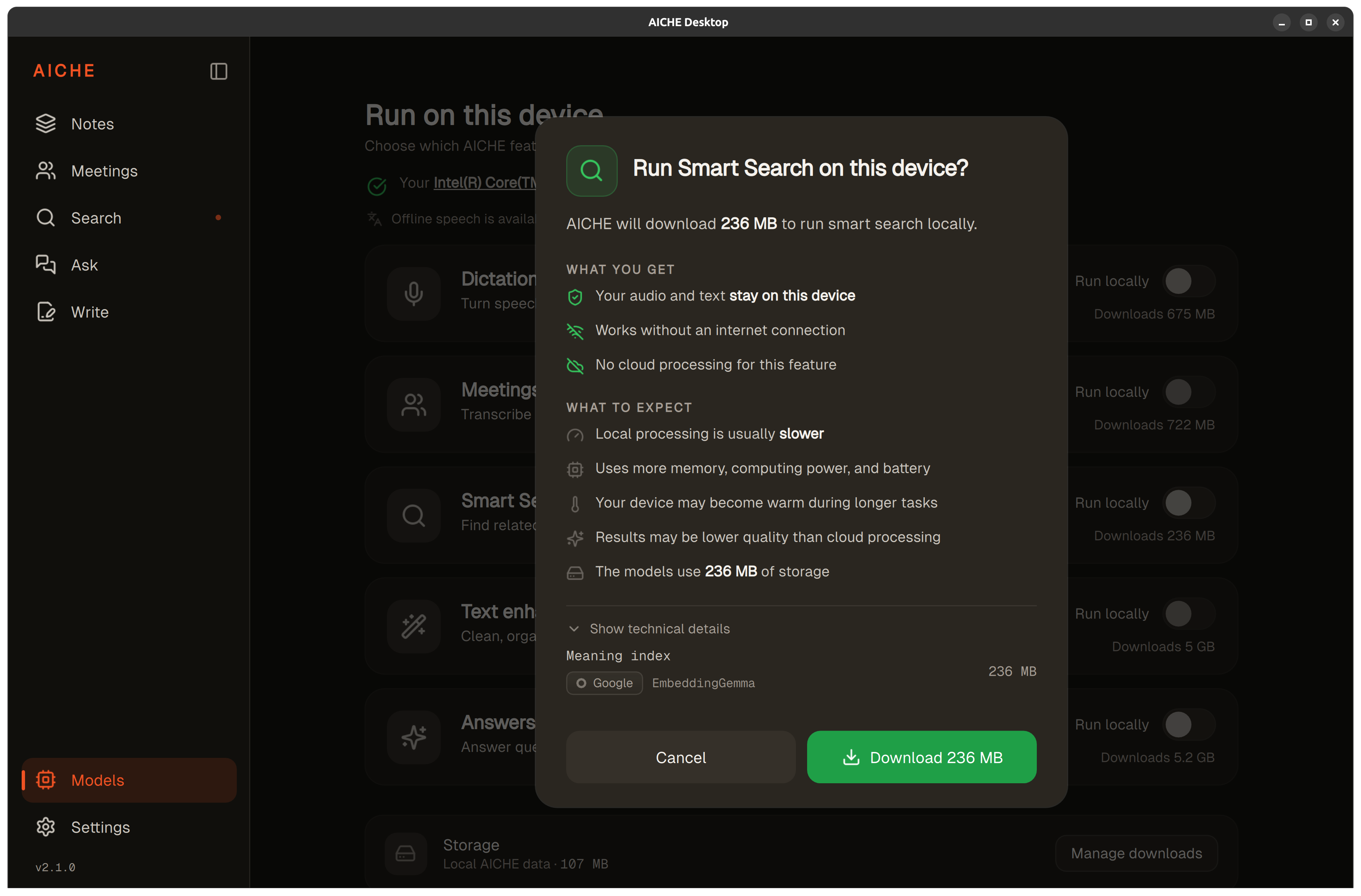
Cloud-based meaning search processes text from your notes and meeting transcripts through the online service. Either option lets you search the notes and meeting transcripts in your library.
When you cannot find something
Clear restrictive filters, try different wording, and check that the item has been transcribed into your library rather than still waiting in Later.
Where to go next:
- Search your notes and meetings on Linux: what you can do with Search.
- Record and transcribe your first meeting: record, transcribe, and summarize meetings.
- Set up on-device processing on Linux: local transcription and model setup.