This guide shows you how to choose which AICHE features run on your device and download the models needed for local processing.
Before you start
Local models require AICHE Professional. Download models while connected to the internet; the app shows which capabilities this machine can run on the Run on this device screen in Models. Once downloaded, features work offline.
Models shows which features your computer can run. Text enhancement and Answers require at least 8 GB of RAM. If your machine does not meet this requirement, those two capabilities show a warning instead of "Ready on this device"; other features remain available. Local processing uses your CPU; no GPU is required.
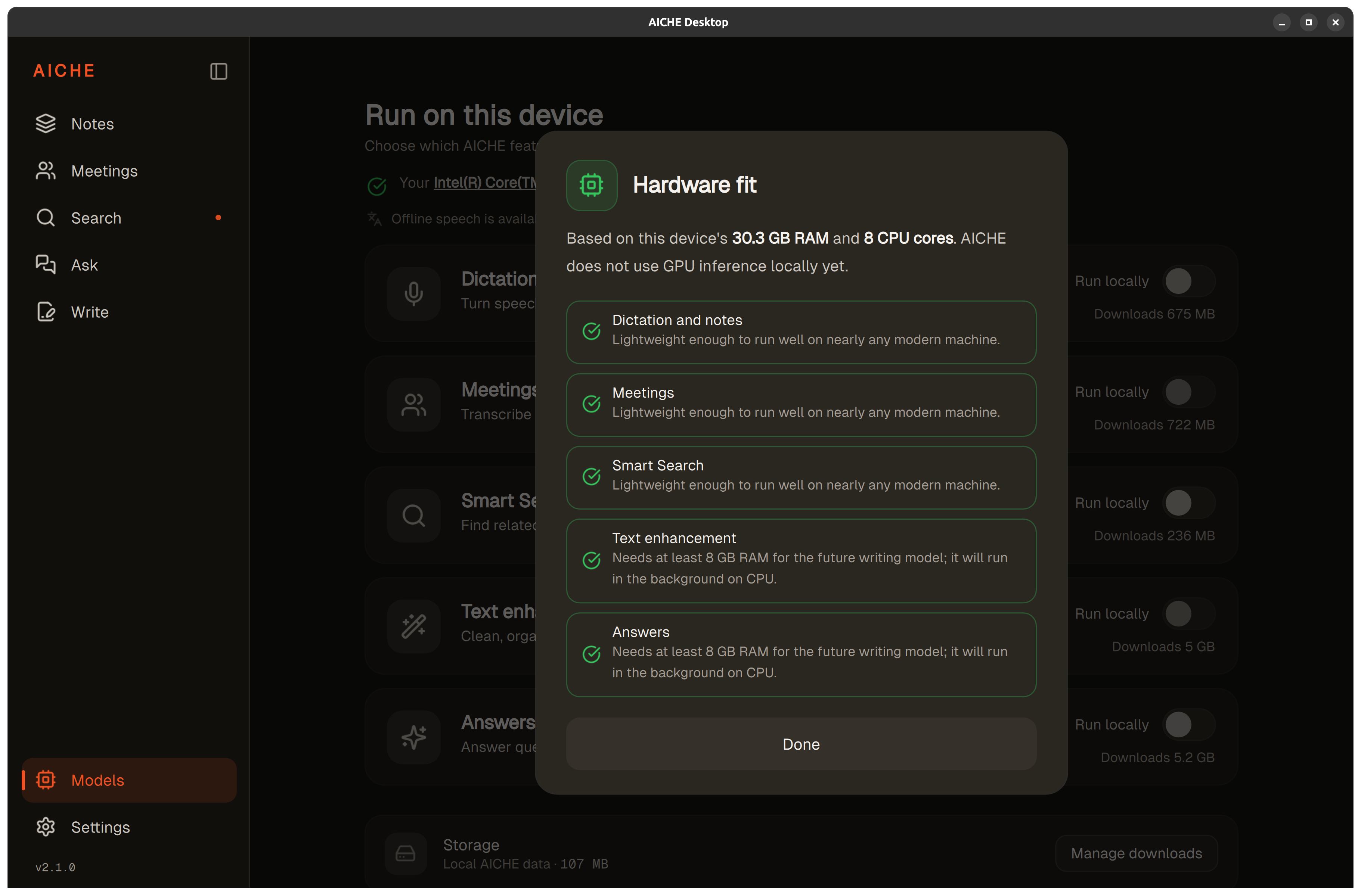
Step 1: Open Models
Select Models in the sidebar. The Run on this device screen shows all five capabilities and their current status.
Step 2: Choose and download the capabilities you need
Each capability has a toggle and a status. When a model is downloaded but not enabled, the status shows "Installed" and "Ready to turn on." When enabled and running, it shows "Running here."
Turn on the capabilities you want to use. For local dictation with text cleanup, enable both Dictation and notes and Text enhancement. For local meeting summaries, enable both Meetings (for transcription and speaker separation) and Text enhancement (for local summaries).
Keep your internet connection until the required model downloads finish. Each downloaded model uses disk space; you can manage this later.
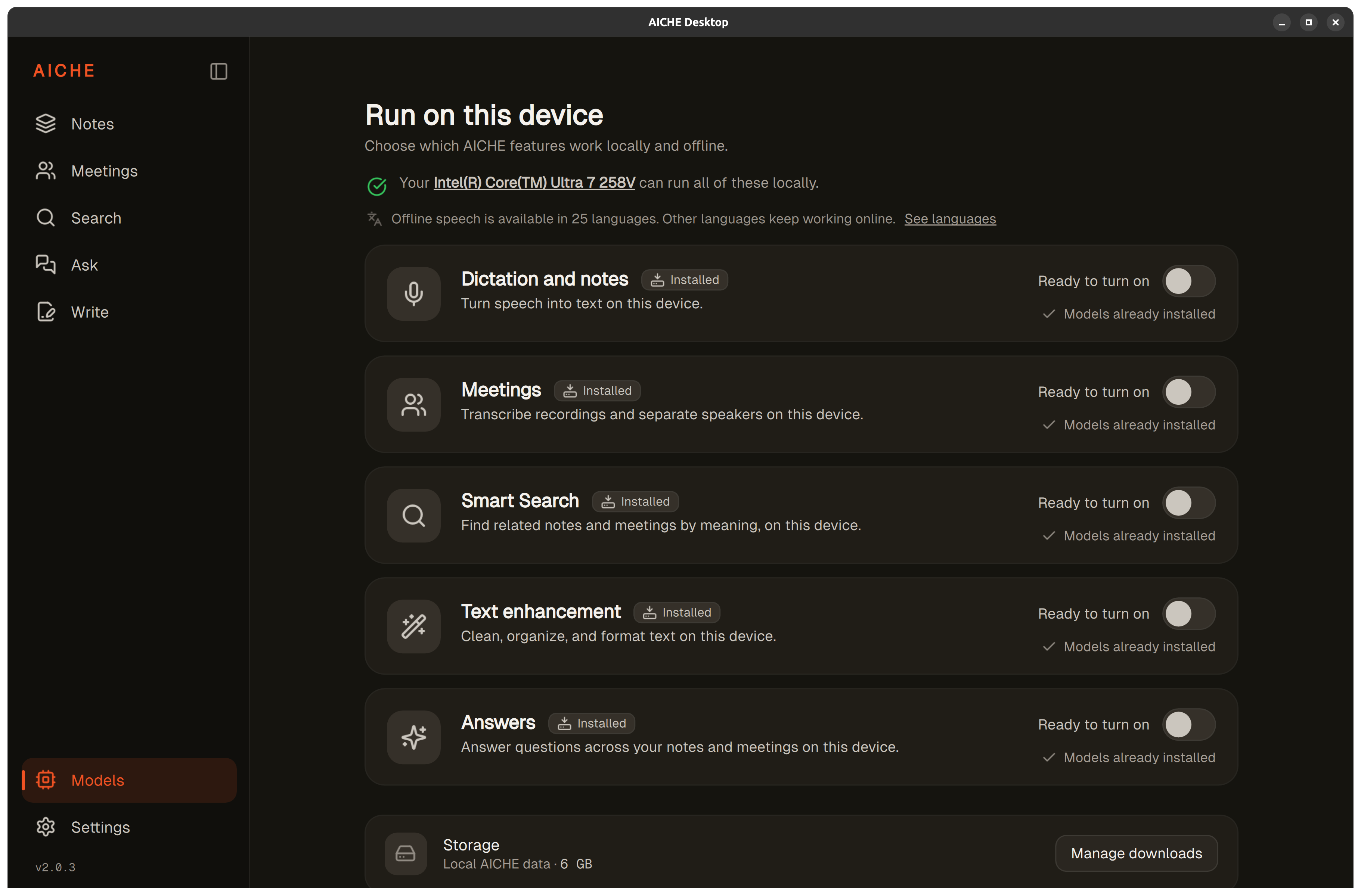
Step 3: Check that the selected features are running
A downloaded model and a running capability are not the same thing. Check the status text on each capability:
- Installed / Ready to turn on: the models are downloaded. Turn on the feature's switch to start local processing.
- Starting...: leave the switch on and wait for initialization.
- Running here: the feature is ready to use on your device.
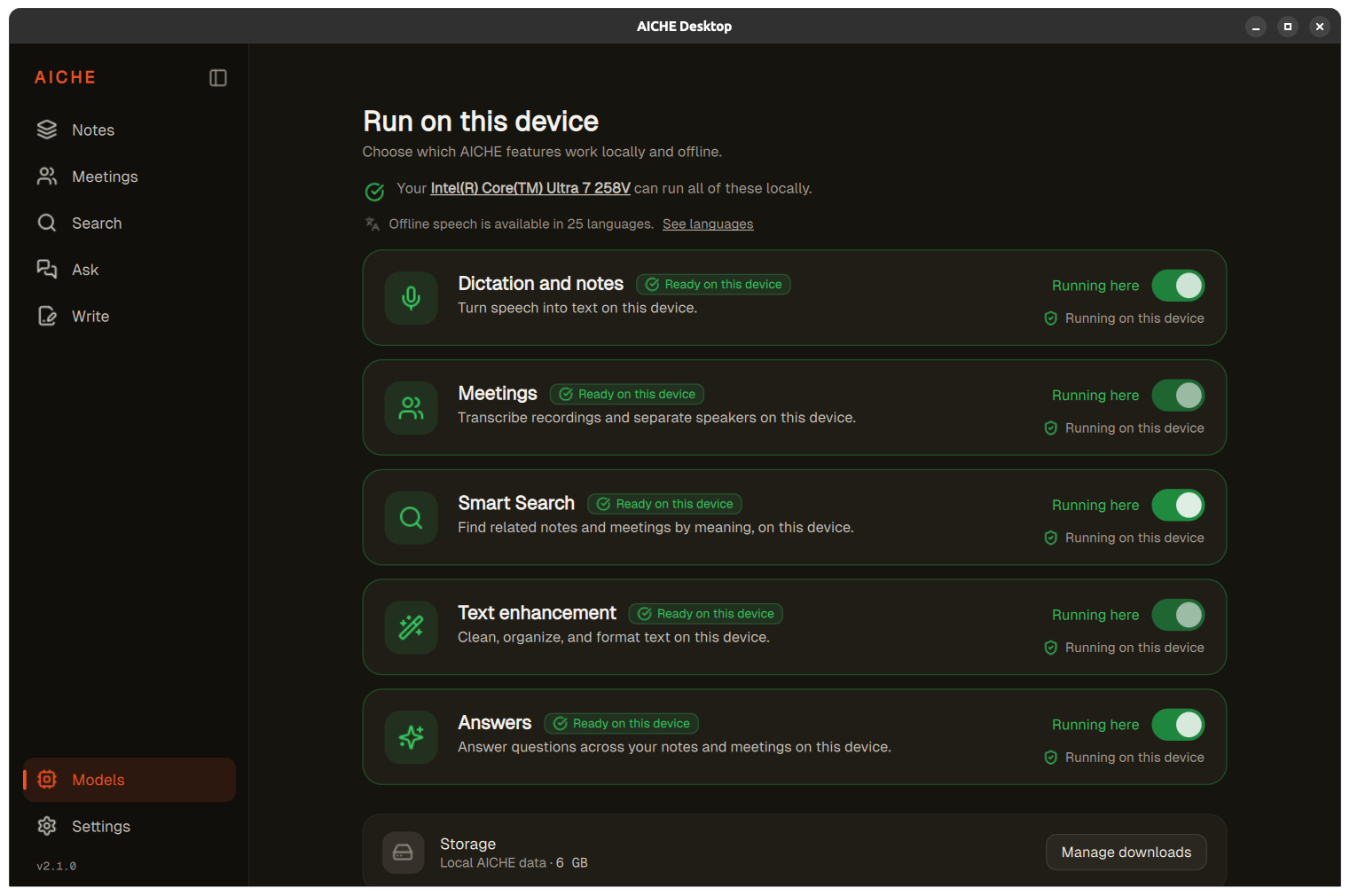
Step 4: Use the feature
Try a short note or a meeting recording to verify local processing. For a meeting, follow the recording steps in Record and transcribe your first meeting.
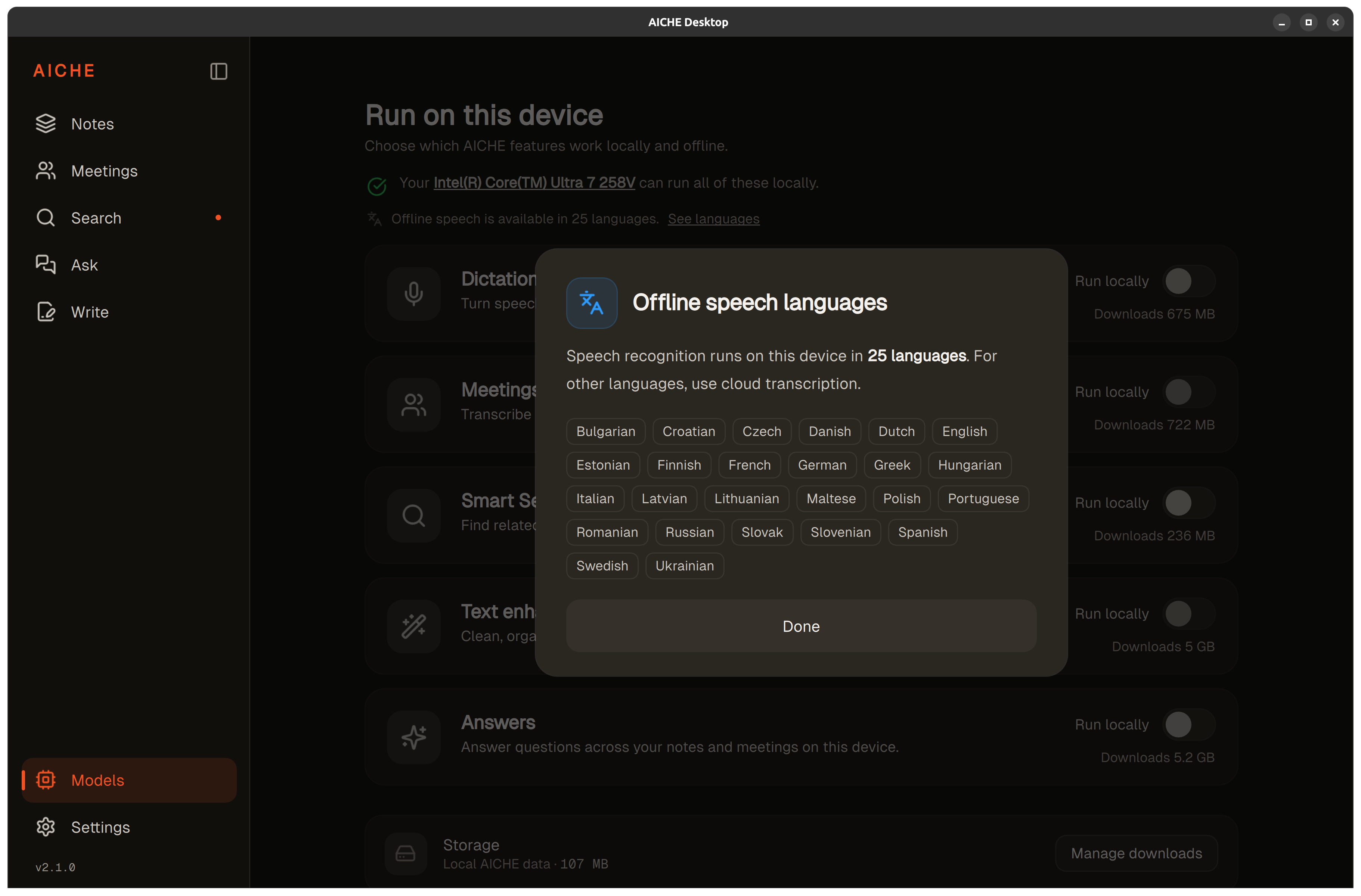
Select See languages on the Models screen to view the 25 languages supported by local speech recognition:
Bulgarian, Croatian, Czech, Danish, Dutch, English, Estonian, Finnish, French, German, Greek, Hungarian, Italian, Latvian, Lithuanian, Maltese, Polish, Portuguese, Romanian, Russian, Slovak, Slovenian, Spanish, Swedish, and Ukrainian.
For other languages, turn off Dictation and notes or Meetings in Models, depending on the task, to use cloud transcription. AICHE does not automatically switch processing methods based on the language you speak.
Step 5: Change your setup or free disk space
To stop using a capability locally, turn off its toggle in Models. The model download remains on your device.
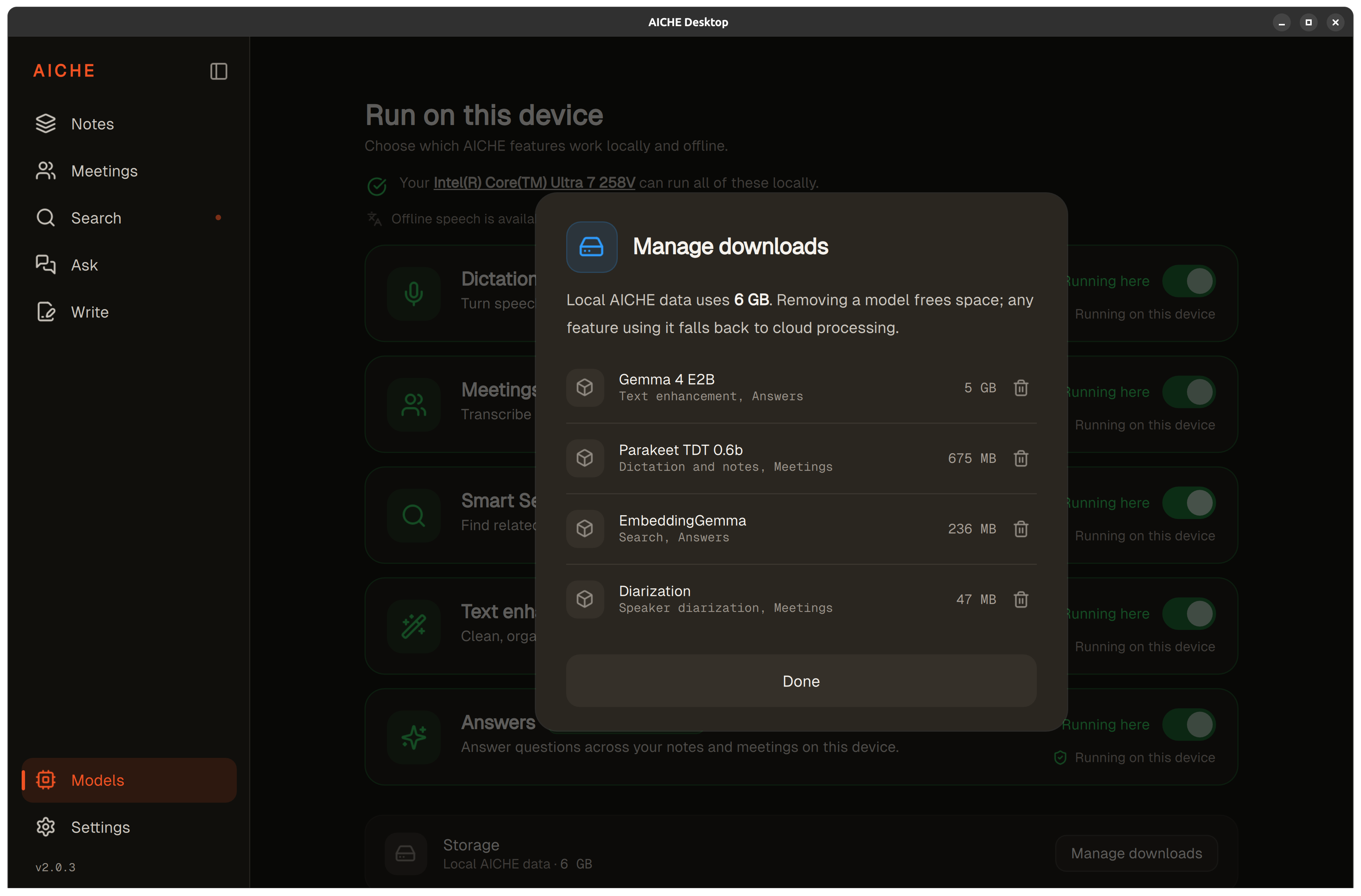
To remove a model and free disk space, open Manage downloads from the Models screen. You can remove individual models. Removing a model frees space; any feature using it falls back to cloud processing. To use that capability locally again, download the model again. Removing a model does not remove your notes or meetings.
Models can share dependencies. Check the feature list in Manage downloads before removing a model that more than one capability uses.
Where to go next:
- Record and transcribe your first meeting: record, transcribe, and summarize meetings.
- On-device AI for Linux: explore the features you can run on your device.