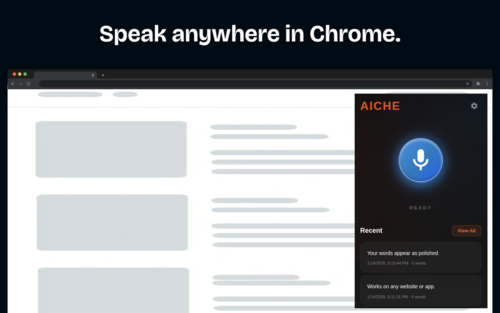
AICHE's Chrome Extension brings fast, AI-powered speech-to-text directly into your browser. Dictate into any input field across Chrome, Brave, Microsoft Edge, Opera, Arc, and Vivaldi.
Installation
- Install directly from the Chrome Web Store (search "AICHE Voice")
- Click the AICHE extension icon in your toolbar (pin it for quick access)
- Click Sign In — a secure authentication tab opens to connect your AICHE account
- Grant microphone permission when prompted on your first recording
How to Record
1. Keyboard Shortcut (`Alt+V`)
Press Alt+V from any browser tab to immediately start recording. Press Alt+V again to finish. Transcribed text auto-pastes directly into whatever input field has focus.
2. Extension Toolbar Popup
Click the AICHE icon in your browser toolbar to open the quick-access popup:
- Click the large microphone button to record.
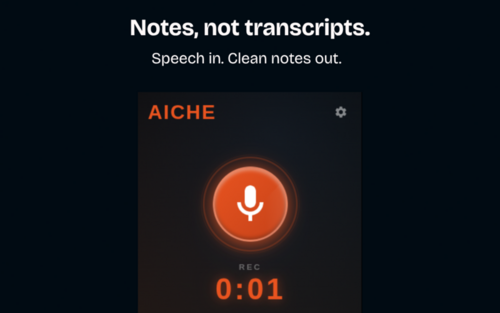
- A live audio visualizer and elapsed timer reflect your voice in real time.
- Click Stop when done to process the audio.
3. On-Page Floating Pill & In-Field Mic
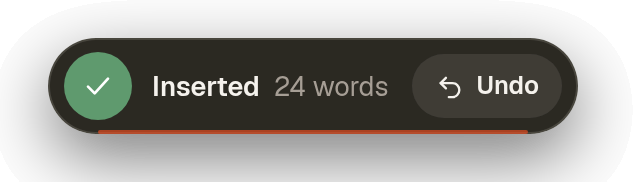
When dictating on a webpage, a lightweight floating widget appears near your cursor:
- While speaking, the pill displays recording duration and waveform activity.
- When transcription completes, the pill confirms insertion (
Inserted 40 words) and offers a one-click Undo button. - If no text box is focused, the pill displays
Copied to clipboardso you never lose spoken thoughts.
4. Right-Click Context Menu
Right-click inside any text area, comment box, or rich text editor and select "Record and Insert Here" from the context menu.
Where Text Goes
After recording:
- Smart Insert auto-pastes into the focused element — works with standard inputs, textareas, contenteditable blocks, and complex React, Vue, or ProseMirror editors (Gmail, Google Docs, Notion, ChatGPT, Jira).
- Clipboard backup: Your transcribed text is always copied to your system clipboard simultaneously.
- Side Panel Notes: Every transcription is automatically saved to your private notes history.
Side Panel Notes History (`Alt+H`)
Open the native Chrome Side Panel by pressing Alt+H or clicking the side panel icon in the popup.
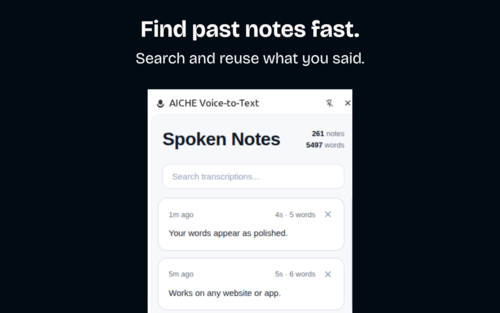
The side panel provides a full-featured notes companion alongside your browsing:
- Instant search: Quickly find any past transcription across 5,000+ stored notes.
- Tag filters: Organize notes with tags like
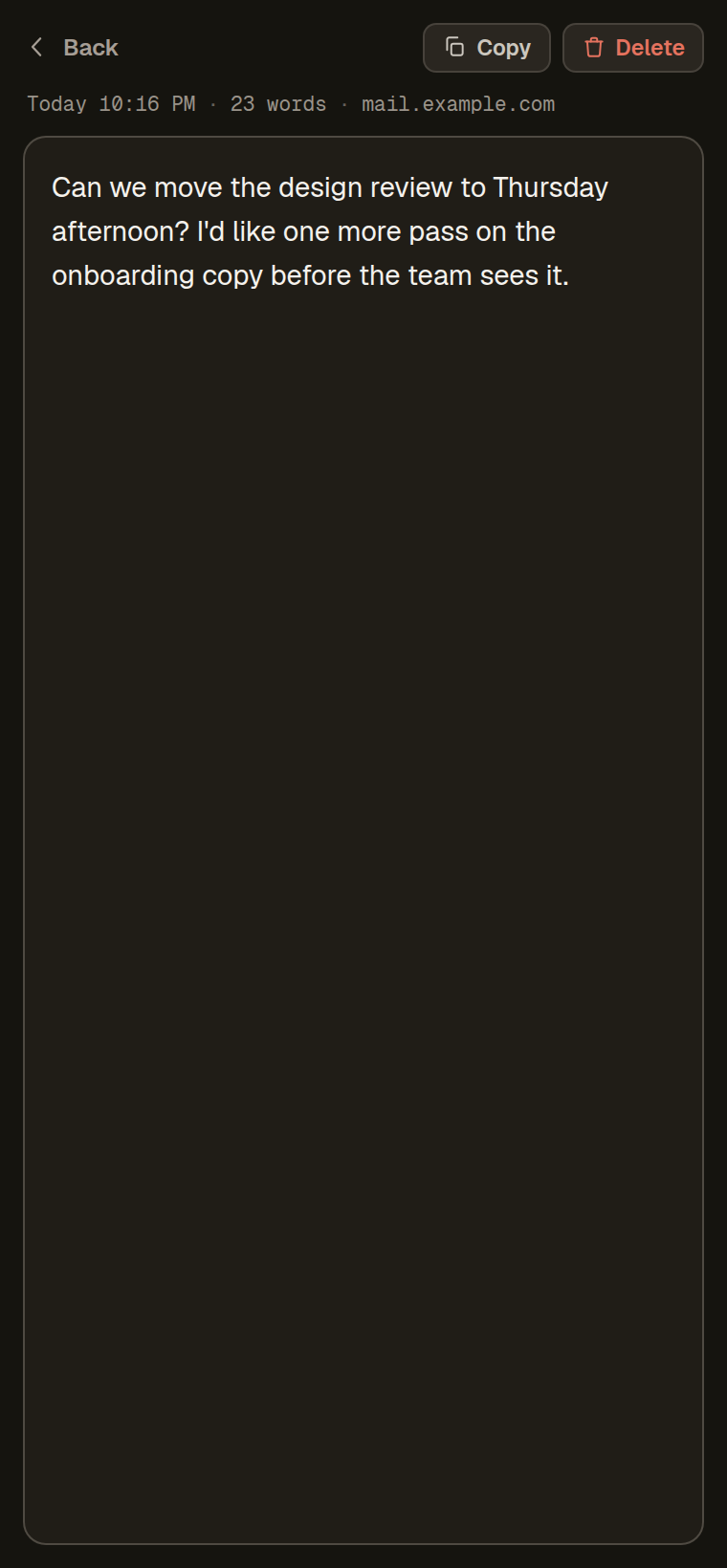
#work,#ideas,#prompts, and#drafts. - Note view & actions: Click any note to inspect word counts, timestamps, and copy text with one click.
Keyboard Shortcuts
| Shortcut | Action | Scope |
|---|---|---|
Alt+V |
Start / stop recording | Any browser tab |
Alt+H |
Open side panel notes history | Browser window |
Customize these shortcuts anytime by visiting chrome://extensions/shortcuts in your browser.
Settings & Customization
Click the gear icon in the extension popup to access settings:
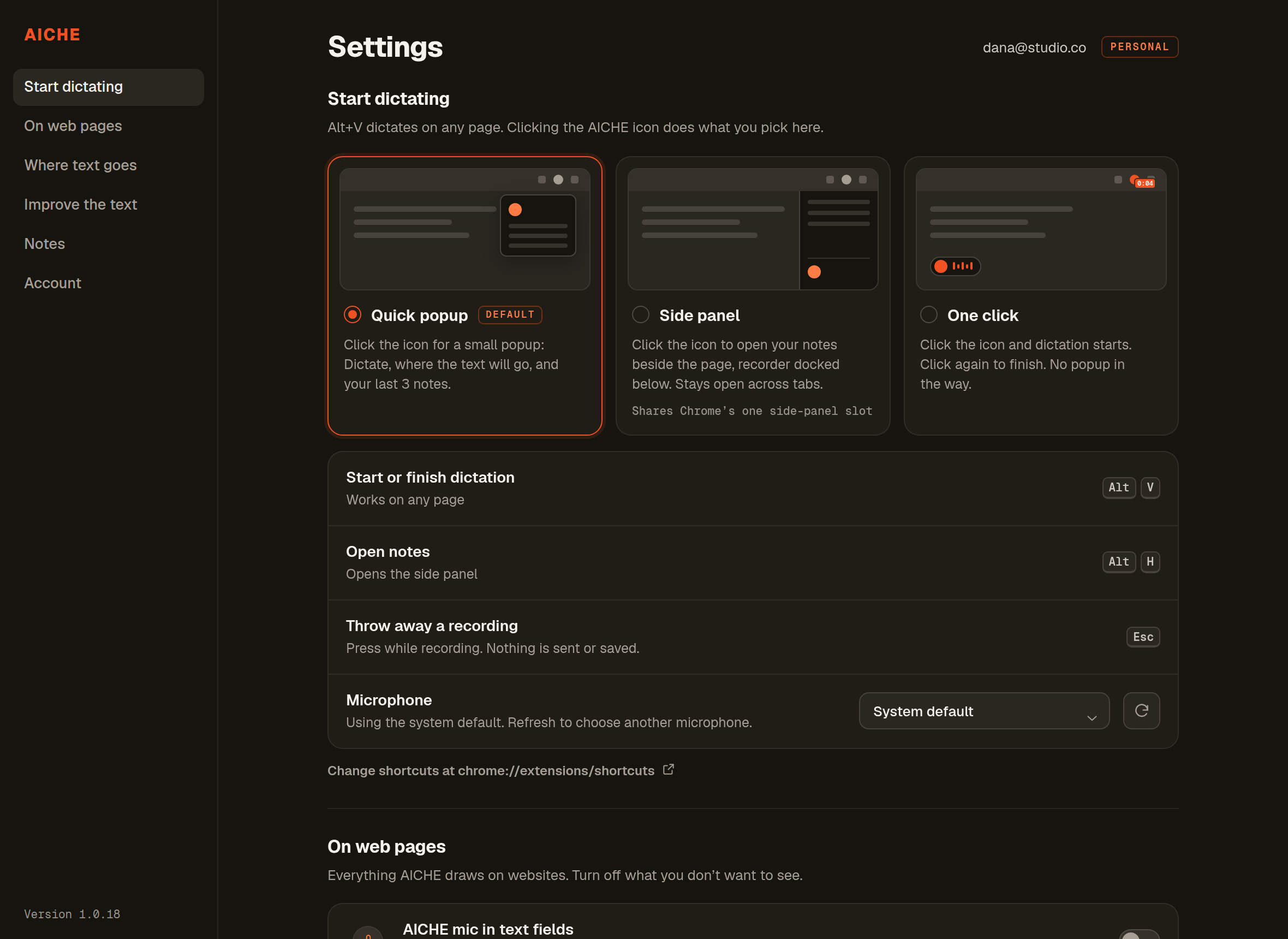
- Theme: Choose between System, Dark, or Light appearance.
- Microphone: Select a specific microphone hardware device or use the system default.
- Smart Insert / Auto-paste: Toggle automatic pasting into focused fields (default: on).
- Typing Speed: Adjust how text is typed into fields (Instant, Fast, Medium, or Slow typewriter emulation).
- Floating Widget: Show or hide the on-page recording pill and undo indicator.
- AI Enhancement: Configure custom system prompts to summarize, polish grammar, remove filler words, or format output as bullet points.
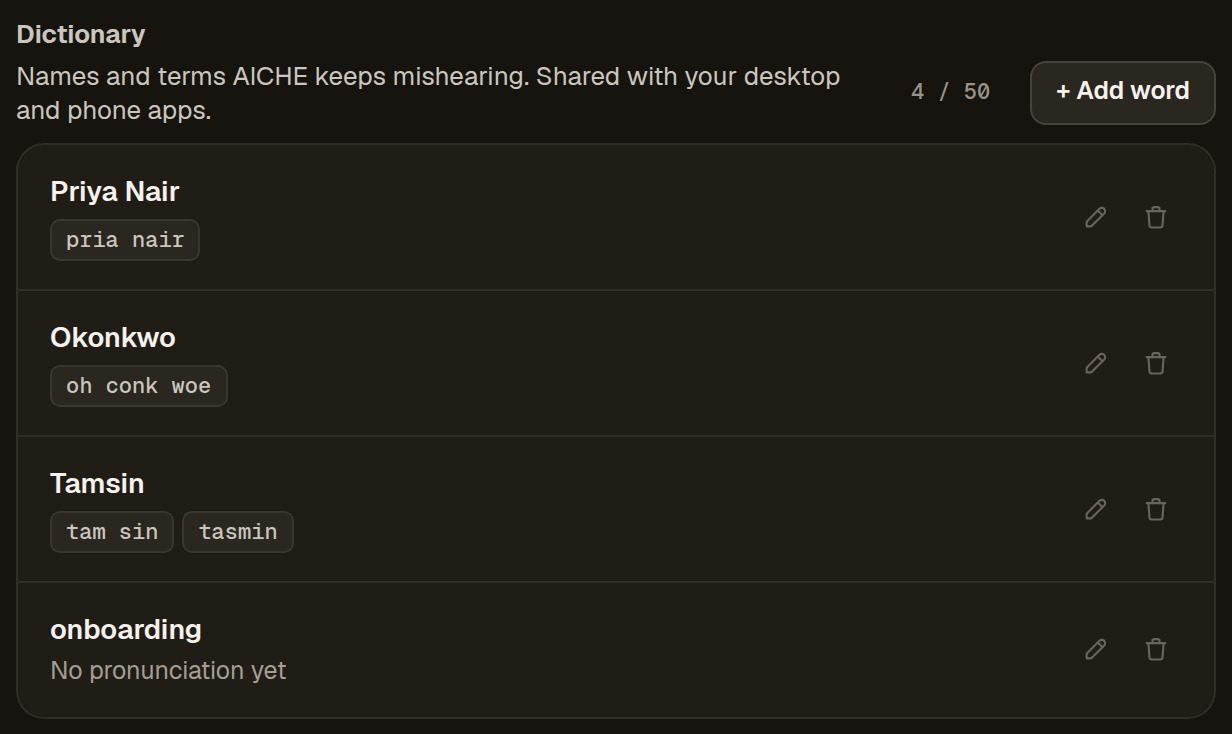
- Custom Vocabulary: Add specialized technical terms, names, abbreviations, and code identifiers to your personal dictionary so they are transcribed with 100% precision.
- Cloud Sync: Opt-in to synchronize notes and custom vocabulary across your desktop, mobile, and browser devices.
Technical Architecture
- Manifest V3 Compliant: Uses modern Chrome extension standards with audio capture routed through an isolated offscreen document for stability and security.
- Streamed Processing: Longer dictations are handled smoothly in background segments without audio loss or memory spikes.
- Zero Retention Privacy: Spoken audio is processed securely and purged immediately after transcription.
Browser Support & Compatibility
AICHE is compatible with all Chromium-based browsers:
- Google Chrome (v116+)
- Brave Browser
- Microsoft Edge
- Opera & Opera GX
- Arc Browser
- Vivaldi
Common Issues & Troubleshooting
Brave Browser asks for mic permission repeatedly:
Grant permission once on the extension permission page. The extension has a built-in cooldown to prevent repetitive prompts.
Nothing happens after recording:
Check if your trial or session expired. The extension popup will display a notice with a direct renewal link.
Extension icon is hard to see on dark toolbar:
AICHE automatically adapts its icon contrast for dark and light browser toolbars. If missing, ensure it is pinned from Chrome's extensions menu (the puzzle piece icon).
Text doesn't paste into a specific website:
Certain sites enforce strict Content Security Policies (CSP) that restrict programmatic paste simulation. Your transcribed text is always safely copied to your clipboard — simply press Ctrl+V (Cmd+V on Mac) to paste.
Can't record on internal browser pages:
Chrome's security model forbids extensions from capturing audio or interacting with internal URLs like chrome://, chrome-extension://, or the Chrome Web Store. Switch to any regular website tab to dictate.