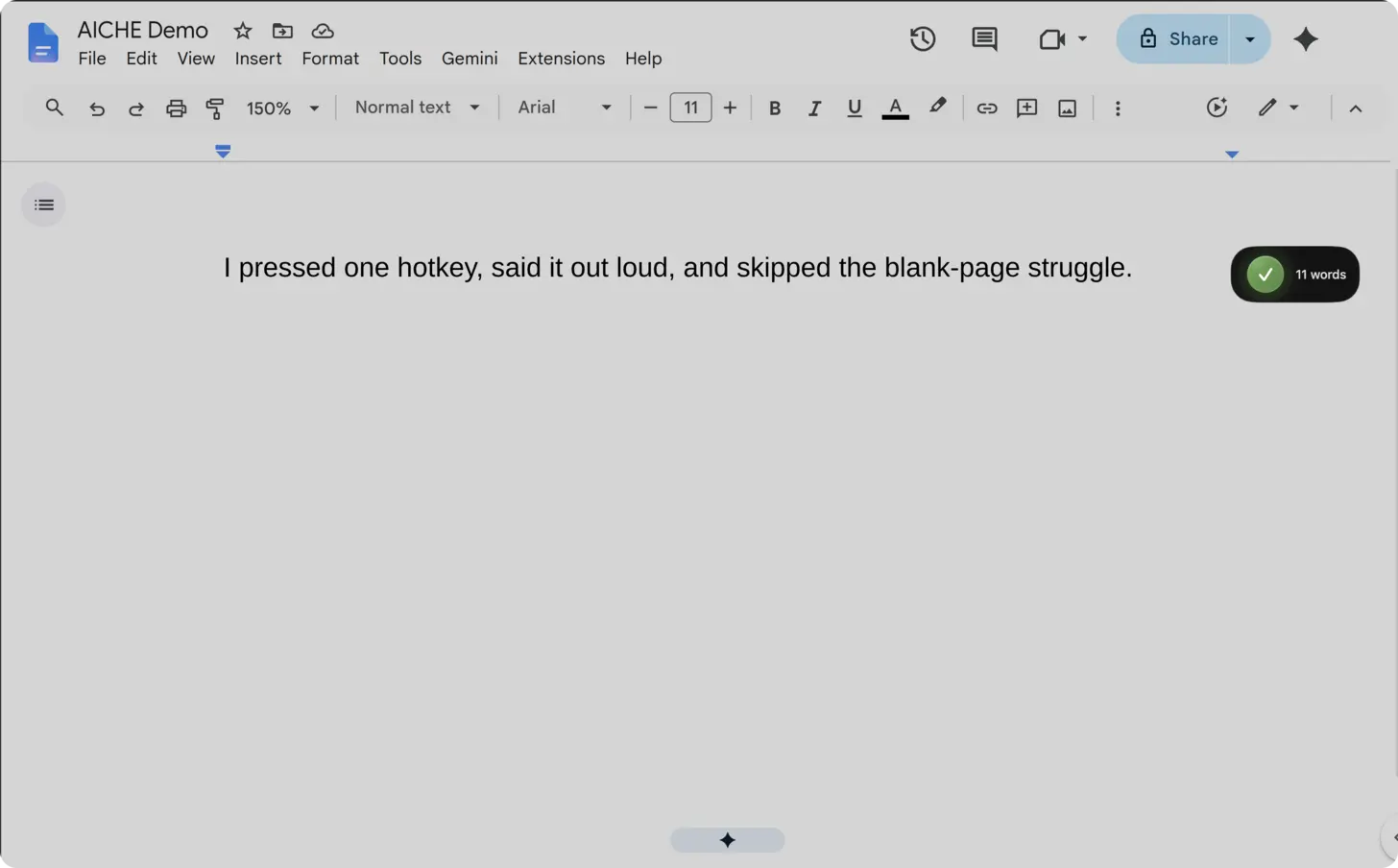
The short answer: open a Google Doc in your browser, click where you want text, press ⌃+⌥+R (Mac) or Ctrl+Alt+R (Windows/Linux), speak your content, press again to stop. AICHE transcribes and inserts formatted text at your cursor. You do not need to keep the Docs tab focused.
Google Docs is a web app. Its built-in Voice Typing (Tools > Voice typing) requires the Docs tab to stay focused. Switch to Sheets to check a number, and transcription stops. It disconnects after short pauses and produces raw, unpunctuated text. AICHE runs at the OS level, independent of browser tabs. Dictate into a Doc while referencing a spreadsheet, Slack thread, or PDF in another window. Smart chips, Suggesting mode, building blocks, and document tabs all accept voice-dictated text.
Real Example: Building Blocks Meeting Notes
You're filling out a Building Blocks meeting notes template. The structured fields have "Attendees," "Discussion," "Decisions," and "Action Items" sections. The "Decisions" section already has a comment thread with 5 replies debating the API approach.
Click into the "Action Items" row. Press ⌃+⌥+R (Mac) or Ctrl+Alt+R (Windows/Linux). Dictate:
"Sarah owns the API migration. Target date is March 15. She needs the staging credentials from infra before starting. Blocked on the VPN config change from last sprint. Miguel will follow up with the network team by end of week."
Press the hotkey again. That row is done. Click into the next field and repeat. The entire meeting notes template fills out in 3-4 minutes of speaking versus 12-15 minutes of typing.
Document Tabs
Google Docs introduced document tabs in 2024 - multiple content sections within a single document URL. A product spec might have tabs for "Overview," "Technical Design," "Timeline," and "Open Questions."
Click into the "Technical Design" tab. Press the hotkey. Dictate the architecture section while looking at your system diagram in another browser tab. Stop recording. Switch to the "Open Questions" tab. Click where you want text. Press the hotkey again and dictate the unresolved items. Each tab gets its own focused dictation pass without losing your place in the document.
Suggesting Mode
Switch to "Suggesting" in the editing mode dropdown. Any text you insert now appears as a tracked suggestion with green highlighting. Collaborators accept or reject with one click.
Position your cursor. Press the hotkey. Dictate: "Reframe this section around customer outcomes. The executive audience cares about retention numbers and NPS impact, not infrastructure changes." Stop recording. The suggestion appears inline with your name and timestamp.
Faster than writing the edit in a comment. The text lands where it belongs in the document flow.
Smart Chips and Action Items
After dictating, add smart chips by typing @. Insert people, files, dates, dropdown chips, or variables. Dictate body text by voice. Add structured chips by keyboard.
For action-item comments, highlight relevant text. Press Ctrl+Alt+M to open a comment. Press the AICHE hotkey. Dictate: "This section needs updated Q1 metrics. Assigning to David to pull numbers from the dashboard before Friday." Stop recording. Add the @mention chip for the assignment checkbox.
Pageless Format and Long Documents
Pageless format (File > Page setup > Pageless) removes page breaks. You get an infinite vertical canvas. No page boundary interrupts a dictated thought.
For long documents, dictate one section at a time. Reference material on one side of the screen, your Doc on the other. Speak a paragraph. Check your notes. Speak another. AICHE does not require the Docs tab to be focused. Your reference material stays front and center.
Version History and Dictation Sessions
Google Docs autosaves with granular version history. Each dictation session creates a visible edit in the timeline. You can name versions (File > Version history > Name current version) after completing a dictation pass - "First draft via voice" or "Added methodology section."
This makes it easy to compare your raw dictated draft against the edited final version, or to revert a dictation that went off track.
Why AICHE Instead of Google Voice Typing
| Google Voice Typing | AICHE | |
|---|---|---|
| Tab focus required | Yes - stops if you switch tabs | No - runs at OS level |
| Pause handling | Disconnects after short silence | Records until you press stop |
| Punctuation | Basic, often missing | AI-applied with context |
| Formatting | Raw unstructured text | Message Ready structures paragraphs |
| Multi-app workflow | Impossible | Dictate while reading other tabs |
| Browser support | Chrome only | Any browser (Chrome, Firefox, Edge, Arc) |
What You Get
- Dictate into document body, headers, table cells, comments, or any text field in Docs
- No tab focus required - reference other tabs and windows while speaking
- Toggle recording with
⌃+⌥+R(Mac) orCtrl+Alt+R(Windows/Linux) - Works with Suggesting mode (inserts as tracked suggestions)
- Works across document tabs within the same file
- Message Ready formats spoken content into structured paragraphs
- Desktop apps for macOS, Windows, and Linux plus Chrome extension
Plans start at $3.99/mo (annual) with a 7-day free trial, no credit card. See pricing.
FAQ
Does AICHE work in Google Docs on Safari?
AICHE transcription works on all browsers. Text insertion is most reliable in Chrome and Firefox. Safari users may occasionally need to paste from clipboard if automatic insertion fails in Docs.
Can I dictate into a Google Docs comment thread?
Yes. Click Reply on any comment, press the hotkey, and dictate your response. The text inserts directly into the comment reply field.
Does it work with add-ons like Grammarly or Zotero?
AICHE inserts text at the cursor position. Any add-on that processes document text (Grammarly for grammar, Zotero for citations) will work on the dictated text the same way it works on typed text.
What happens with real-time collaboration cursors?
Other collaborators will see your cursor position and the text appearing in real time when AICHE inserts it. There is no conflict - it behaves the same as fast typing from their perspective.
Does AICHE work on mobile?
AICHE has apps for iPhone and Android. The desktop hotkey workflow described on this page applies to Google Docs in a browser on macOS, Windows, and Linux.
How do I dictate into a table cell?
Click into the specific table cell, press the hotkey, dictate, and press again to stop. The text inserts only into that cell.
Result: a 600-word report section that takes 15 minutes to type becomes 4 minutes of dictation. Filling out a building blocks template with 8 fields drops from 20 minutes to 6 minutes of speaking. Comment responses across a 30-comment review take 5 minutes instead of 20.
Try it now: open a Google Doc, click where you want text, press your hotkey, and dictate a full paragraph about the most complex thing you're working on this week. Reference your notes in another tab while speaking.