Turn spoken ideas into notes you can find and use again. Dictate a thought through the recording control or the Ctrl+Alt+R hotkey, or transcribe an existing recording, then organize the text with tags, edit it and copy it wherever you need it.
Keep spoken ideas as useful notes
Open Notes and record a thought. When you stop, the finished text appears in your feed if Keep history is enabled in Settings > Privacy & Data. Without it, completed dictations are not retained.
You can also bring an existing recording into Notes. Use the paperclip icon, Ctrl+O, or drag a recording onto the Notes screen. The result is a text note, not a speaker-labelled transcript; for meeting transcripts, use Meetings.
Find and organize what you recorded
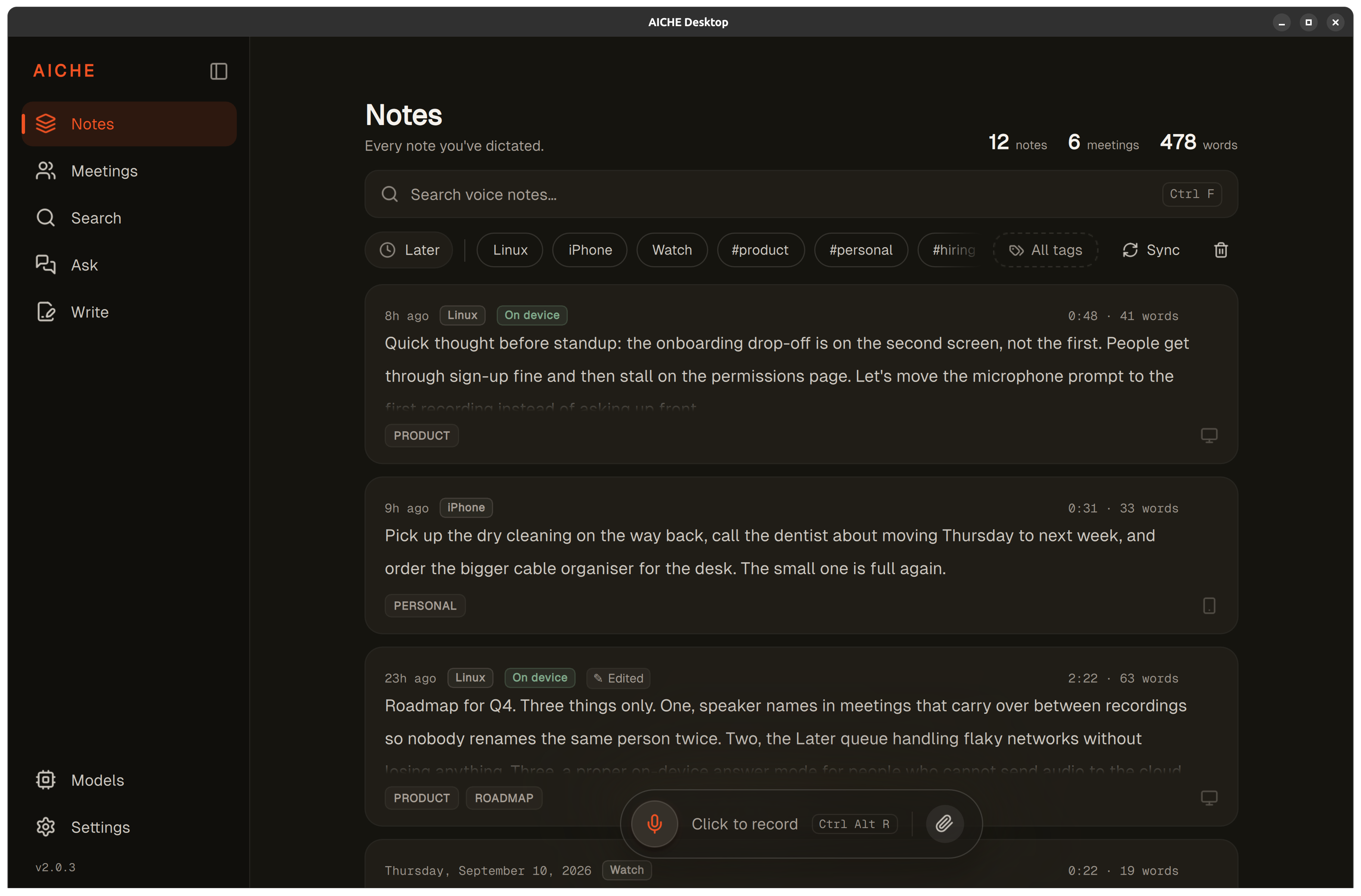
The Notes feed shows everything you have kept. Each note displays the device it was recorded on, when it was created, and how long it is. Use the search field to find a note by its text, or filter the feed by device or tag.
Add your own tags to group notes by topic. For example, product, personal or research. Tags are labels you create inside a note; they are not folders or automatic categories. Device labels like Linux, iPhone or Watch are assigned automatically and cannot be added or removed.
Edit the text and use it again
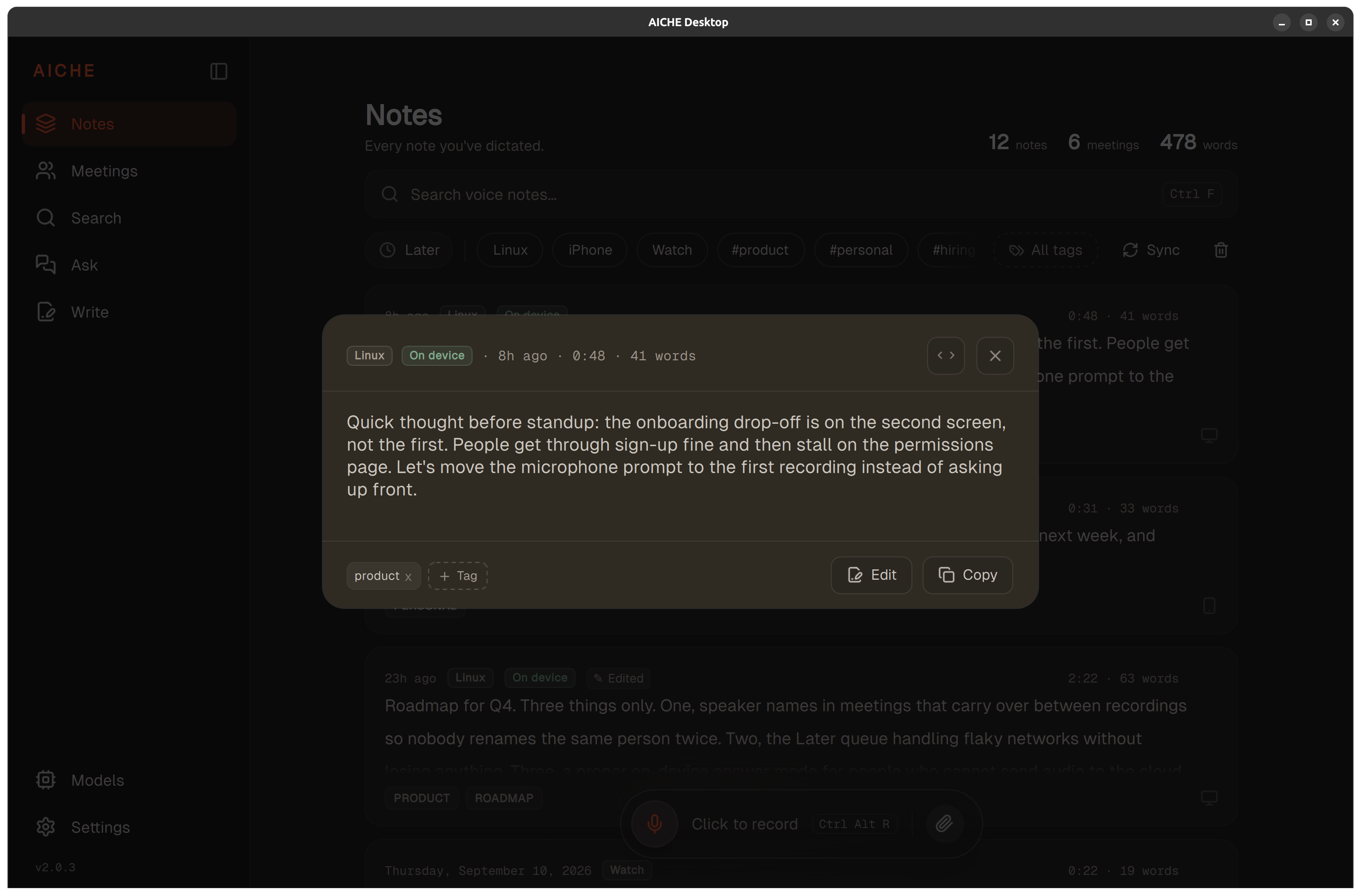
Open a note to read the full text. Choose Copy, then paste the text into another application. Notes display Markdown content.
To expand or rework a note, choose Edit to open it in Write. Changes save back to the original note. Because the note synchronizes with Cloud Sync, changes made in Write appear on other devices. Write is a cloud-based workflow; ordinary reading, copying and light editing in Notes do not require it.
Record now and process later
Not every recording needs to be transcribed right away. You can record without a connection and process it later. Recordings waiting for transcription sit in Later on the Notes screen. They stay there until you process or delete them.
When you are ready, open Later and choose Process for one recording or Process All for the queue. Processing transcribes the audio into text; the finished note appears in your feed and the recording leaves Later. If processing was interrupted, you can try again from Later.
Choose processing and optional sync
For local transcription, enable Dictation and notes in Models. For local text cleanup, enable Text enhancement separately. On-device models require AICHE Professional; using the Notes library itself does not.
Optional Cloud Sync synchronizes your notes across devices. Tags remain on the current device. For setup, see the Cloud Sync guide.