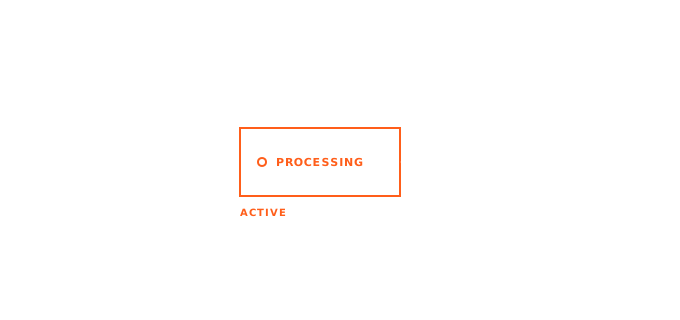
The short answer: While recording, AICHE shows a compact floating bar in the corner of your screen displaying elapsed time, processing status, and completion - no need to switch windows or check the main app.
Switching to AICHE's window mid-recording breaks your flow. Checking if processing finished means alt-tabbing. After 20 dictations, you've lost 3 minutes to window switching alone.
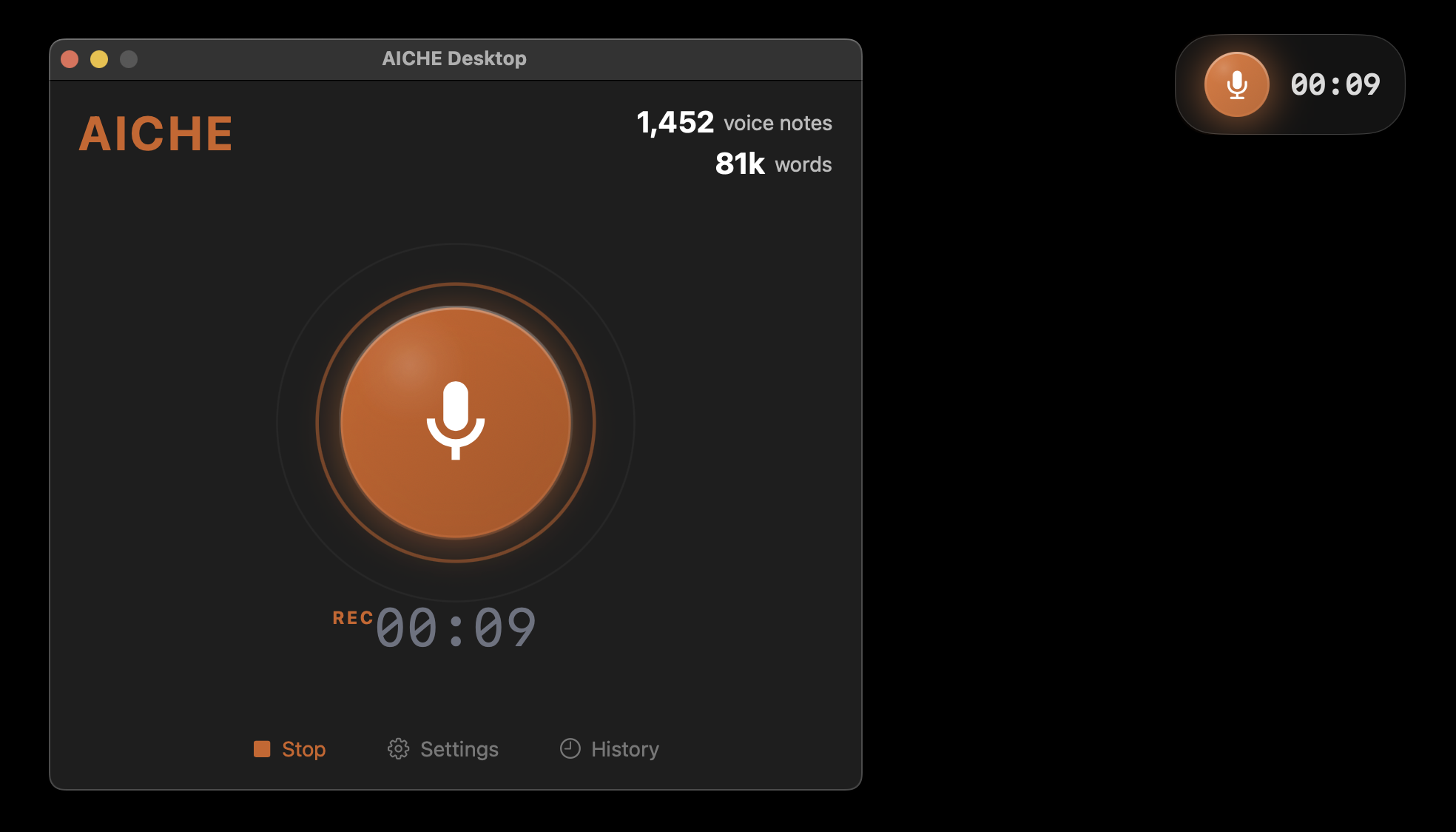
- Start recording with your hotkey (⌃+⌥+R on Mac, Ctrl+Alt+R on Windows/Linux) while focused on any application.
- A small floating bar appears in the top-right corner of your screen.
- During recording: Shows elapsed time in seconds (e.g., "00:09") with a red/orange recording indicator.
- During processing: Shows "Processing..." with a green pulsing indicator.
- On completion: Displays word count (e.g., "6 words") with a checkmark for 3 seconds.
- The bar automatically dismisses after completion or when you switch back to AICHE's main window.
Heads-up: The floating bar is always-on-top of other windows. It's designed to be unobtrusive - small enough to ignore, visible enough when you glance.
The pro-tip: Position your active work window slightly away from the top-right corner. A quick eye movement shows recording status without moving your head or breaking typing flow in the target application.
Result: Record 15-second voice notes while writing code. Glance up to confirm "Processing..." appeared. Resume coding. Text appears at cursor 4 seconds later. Zero window switching, zero workflow interruption.
Do this now: Start recording in any text editor, look at the top-right corner, speak for 10 seconds while watching the timer count up, then watch it change to "Processing..." when you stop.
What the Floating Bar Shows
Recording State (Red/Orange)
- Timer format: MM:SS (e.g., "00:09", "01:23")
- Visual: Microphone icon with recording animation
- Updates: Real-time, updates every second
- Purpose: Confirms recording is active and shows duration
Processing State (Green)
- Text: "Processing..."
- Visual: Pulsing green indicator
- Duration: 2-8 seconds depending on recording length and AI enhancements enabled
- Purpose: Confirms AICHE received the audio and is transcribing
Completion State (Green Checkmark)
- Text: Word count (e.g., "6 words", "142 words")
- Visual: Green checkmark icon
- Duration: Visible for 3 seconds, then auto-dismisses
- Purpose: Confirms transcription completed and shows output size
When the Floating Bar Appears
Appears automatically when:
- Recording starts via global hotkey from any application (not when AICHE window is focused)
- AICHE is minimized or in the background
- You're working in another application and need status feedback
Does NOT appear when:
- Recording from AICHE's main window (status visible in app)
- AICHE window has focus (redundant with main UI)
- App is in system tray/menu bar only mode (use notifications instead)
Platform Differences
macOS: Floating bar appears in the top-right corner, respects menu bar and notch areas on newer MacBooks.
Windows: Top-right corner by default, stays above taskbar.
Linux: Top-right corner, positioning respects different desktop environments (GNOME, KDE, XFCE).
Floating Bar vs. System Notifications
The floating bar is active status - it shows what's happening right now while you work.
System notifications are completion alerts - they inform you when processing finishes, useful when you've moved to a different task.
Use both: Glance at the floating bar for quick status checks during short recordings. Rely on notifications when dictating longer content (60+ seconds) and switching tasks while AICHE processes.
Common Questions
Can I move or resize the floating bar?
Not currently. The top-right position was chosen based on typical screen layouts and minimal interference with app toolbars.
Can I disable it?
Not currently. The floating bar is core to the "record from anywhere" workflow. If you prefer working without it, keep AICHE's main window visible and record using the Space bar instead of the global hotkey.
Does it work with multiple monitors?
Yes. The floating bar appears on the same monitor as your active window (where you triggered the recording). If you have a 3-monitor setup and record while focused on the left monitor, the bar appears on that monitor.
Why does it disappear after completion?
Auto-dismissal (3 seconds) prevents clutter. Once you see the word count, you know transcription succeeded. The text either auto-inserted (Smart Insert enabled) or is waiting in AICHE's history.
Can I click on it?
No. The floating bar is display-only. Use the global hotkey to stop recording or click the main AICHE window.
Tips for Effective Use
For short notes (5-15 seconds): Watch the timer to pace yourself. Most people speak 2-3 words per second, so 10 seconds = 20-30 words, perfect for a Slack message.
For longer dictation (30-60 seconds): Start recording, then ignore the bar and focus on your thoughts. Glance up when you finish speaking to confirm it switched to "Processing..."
For rapid-fire messages: Send 5 messages in 2 minutes to the same Slack channel. Watch the floating bar cycle through recording → processing → completion for each one. You'll develop muscle memory for timing.
Troubleshooting: If the floating bar doesn't appear, check that you used the global hotkey (⌃+⌥+R or Ctrl+Alt+R), not Space bar, and that AICHE isn't the focused window.